First issue:Pixel9 mobile phone is available! Android's latest feature: native terminal supports full Debian12
Second issue:In-depth analysis of Android 15 native Debian Linux environment: application scenarios, technical background and future prospects
Third issue:Explore Android 15 native Linux, remote control, visual management and application practice|Google
In this sharing, we will continue to explore the powerful functions of Android 15 native terminals and see what we can do after running a complete Debian 12 virtual machine (VM) on the Pixel series of mobile phones.
Disclaimer: I am a Linux novice, please give me some advice!
First of all, I have to be honest with you that my personal understanding of Linux is still shallow. Many professional terms and codes come from online tutorials, AI tools such as DeepSeek and Gemini. The reason why I insist on making this series of videos is that I firmly believe that there are many hidden talents in Bilibili, and many questions can be found in the comment area. Therefore, I sincerely ask all the big guys to give me advice and point out the shortcomings in the video. Thank you very much! Through the above steps, we have successfully built a basic Debian 12 system in the native Linux environment of Android 15, and implemented functions such as remote desktop, visual management, and file access. Although I am a novice in Linux, I believe that this process will be helpful to some friends who want to explore the possibilities of Linux on their mobile phones like me.
Once again, I would like to ask all Linux experts to give me some advice. If there are any errors or deficiencies in the video or article, please point them out in the comments. I also hope that everyone can share more interesting ways to play and application scenarios about Android native Linux! Thank you for watching and supporting us!
Objective of this issue: Remote management and visualization of Debian 12
The main goal of this video is to install and configure a series of remote management and visualization tools in a Debian 12 virtual machine, including SSH, graphical interface XFCE, remote login tools VNC Server and XRDP, as well as visualization panel 1Panel and file management tool AList. At the same time, I will also use the virtual networking tool Tailscale to achieve the remote login requirements of the internal and external networks. As for traditional port forwarding, due to my limited technical level, it has not been implemented yet, and I also hope to take this opportunity to ask for advice from all the masters.
Preparation
Update the system
sudo apt update
sudo apt upgrade -y
1. Install tailscale
1. Install the code
curl -fsSL | sh
2. Run the code
sudo tailscale up
3. Account login
After entering the running code, do not open the output URL directly, copy it to the browser and then open it.
Otherwise the verification will fail.
4. Modify DNS
After installing tailscale, its DNS server will be added to the DNS configuration file, thus affecting the normal software source update and installation.
If you encounter an error like this:
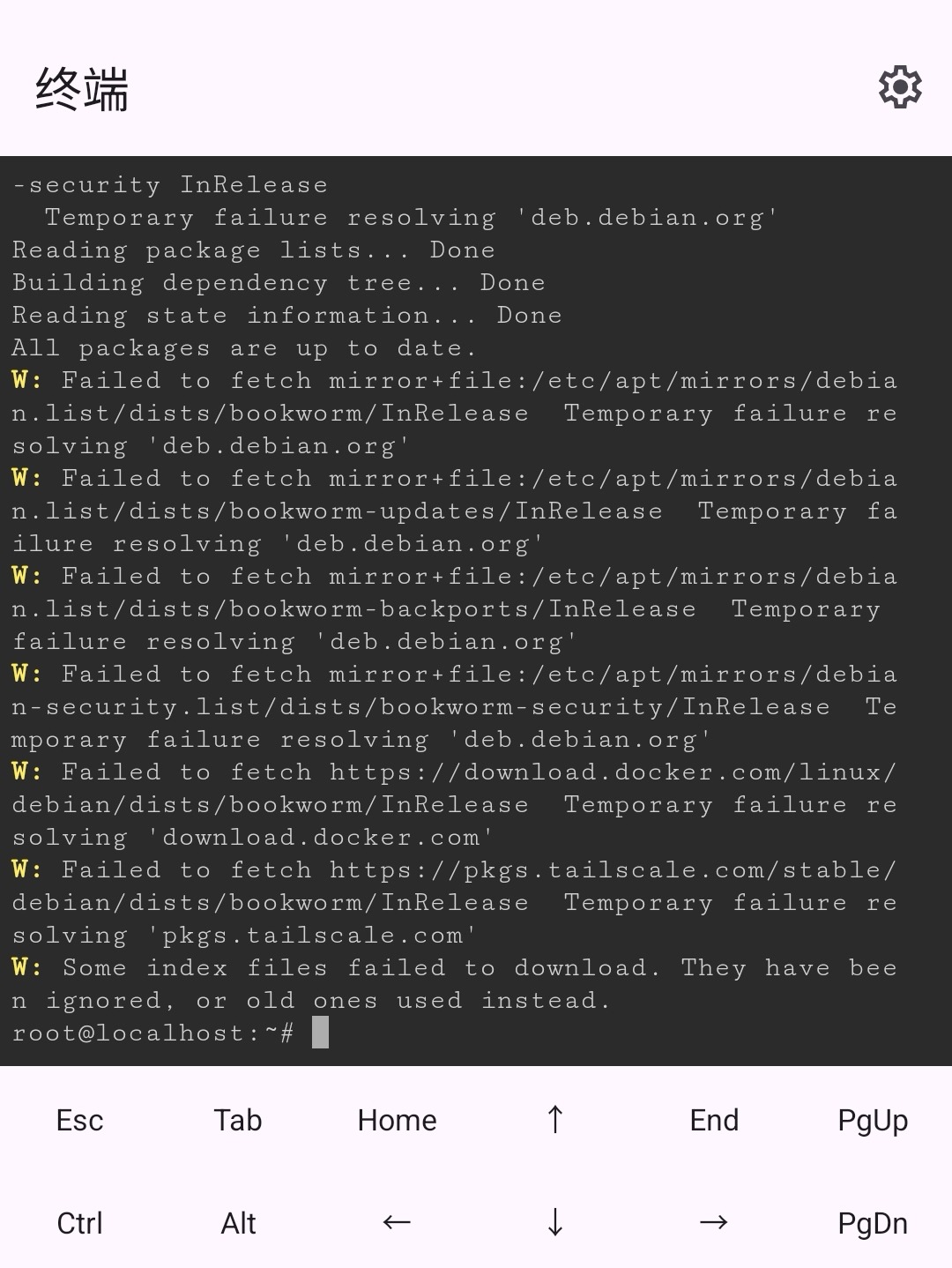
You need to add several common resolution servers to the DNS configuration file
(1) DNS configuration file location:/etc/resolv.conf
[Friends who are not familiar with the code can install 1panel in advance and change it directly in the file management]
(2) View the configuration file
sudo nano /etc/resolv.conf (3) Add two common DNS serversnameserver 8.8.8.8 nameserver 8.8.4.4
2. Install ssh
sudo apt install openssh-server #Install ssh-server sudo systemctl start ssh #Start ssh sudo systemctl enable ssh #Enable ssh sudo systemctl status ssh #Check ssh status
Connect to the server
**#**username is your username #** is followed by the IP address of the ssh server #**p is followed by the port number, which is 22 by default. You can leave it blank ssh [email protected] -p 22
Add a user and grant root permissions
sudo adduser playful #Add user playful sudo usermod -aG sudo playful #Add to sudo group su playful #Switch user playful sudo ls /root #Verify permissions
3. Install the graphical interface (taking lightweight Xfce as an example)
- Install Xfce Desktop Environment Enter the following command (Xfce is recommended, as it uses less resources):
sudo apt install xfce4 xfce4-goodies -y - Start the graphical interface After the installation is complete, enter:
bash sudo systemctl start lightdm
Install D-Bus prerequisites
sudo apt install dbus-x11 policykit-1 -y
- Key Package Description:
dbus-x11: Provides graphical support for D-Bus in the X11 environmentpolicykit-1: Permission management framework (depends on D-Bus)
4. Access the graphical interface
Remote connection via VNC (recommended, remote connection issues have not been resolved yet)
- Install TigerVNC Server:
bash sudo apt install tigervnc-standalone-server -y - Set the VNC password:
bash vncpasswd - Start the VNC service:
#playful is the user I created. If you use root, don’t write “-u playful” sudo -u playful vncserver :1 -geometry 1920x1080 -depth 24 -localhost no - Installation on Android devicesVNC ViewerApply, enter address
localhost:5901connect
XRDP Remote Connection
1. Update Debian package list
XRDP can be installed using the default system repository of Debian 12, so let’s open a command terminal and run the system update command to update the package list.
sudo apt update
2. Install XRDP on Debian 12 Bookworm
Once the update command is finished, you can use the APT package manager to install XRDP just like any other package available through the default repositories of your Debian 12 system.
sudo apt install xrdp
3. Start and enable the XRDP service
We need to start and enable the XRDP server as it might not start automatically, so, use the given command:
sudo systemctl enable --now xrdp
To know if the XRDP server we installed is working properly as a background service, check its status.
systemctl status xrdp --no-pager -l
4. Add the XRDP user to the SSL-Cert group
We need to add the XRDP user to the SSL-cert group in order to access it properly, otherwise it will just show a blank screen after the remote desktop connection is established.
sudo adduser xrdp ssl-cert
Restart the XRDP server with the following command:
sudo systemctl restart xrdp
5. Allow ports in firewall
Although port 3389 will be opened automatically, if you still have a firewall installed, run the given command once:
sudo ufw allow 3389
Afterwards check the system IP address and note it down.
ip a
5. Install the browser
Google currently does not provide a Google Chrome browser for ARM64 architecture Linux distributions (such as Debian on ARM).
Install Chromium browser: Chromium is the open source base project for Google Chrome, is very close to Chrome in functionality, and is usually available in ARM64 builds in Debian's official repositories. This is the most recommended alternative.
Chromium browserIt seems that the sandbox mode of the root user is not supported. It is recommended to install it under droid or a self-created user.
- Open the terminal of Debian 12.
- Update package lists:
sudo apt update - Install Chromium:
sudo apt install chromium
Through the above steps, we have successfully built a basic Debian 12 system in the native Linux environment of Android 15, and implemented functions such as remote desktop, visual management, and file access. If there are any errors or deficiencies in the video or article, please correct them in the comment area. I also hope that everyone can share more interesting gameplay and application scenarios about Android native Linux! Thank you for watching and supporting!
