playcover is a magical software that can install iPhone iOS software into Mac computers. It is more used by users to play mobile games like "Genshin Impact". I first bought it to play "Star Rail" on a Mac computer. Of course, its uses aren't limited to games. We can use it to run some apps exclusive to iOS, or to demonstrate mobile software, which is a good choice.
Why install iPhone software into Mac computers?
1. iOS exclusive software
2. The Mac version has streamlined functions, while the iOS version has more complete functions.
3. Play iOS games
4. iOS software demonstration, etc.
Friends who play Genshin Impact may be more familiar with this software, called: playcover.
This software is only about 5M. Just drag the ipa installation package (iOS software) into playcover and you can run it directly. For friends who want to use Mac computers to play mobile games, its biggest function is to support keyboard mapping; and at work, it is also very convenient to view or demonstrate some iOS-exclusive software on the computer.
If you are like me and have recently started using Mac computers frequently, you might as well consider playcover as a must-install software.
1. Software installation
URL: https://github.com/PlayCover/PlayCover/releases
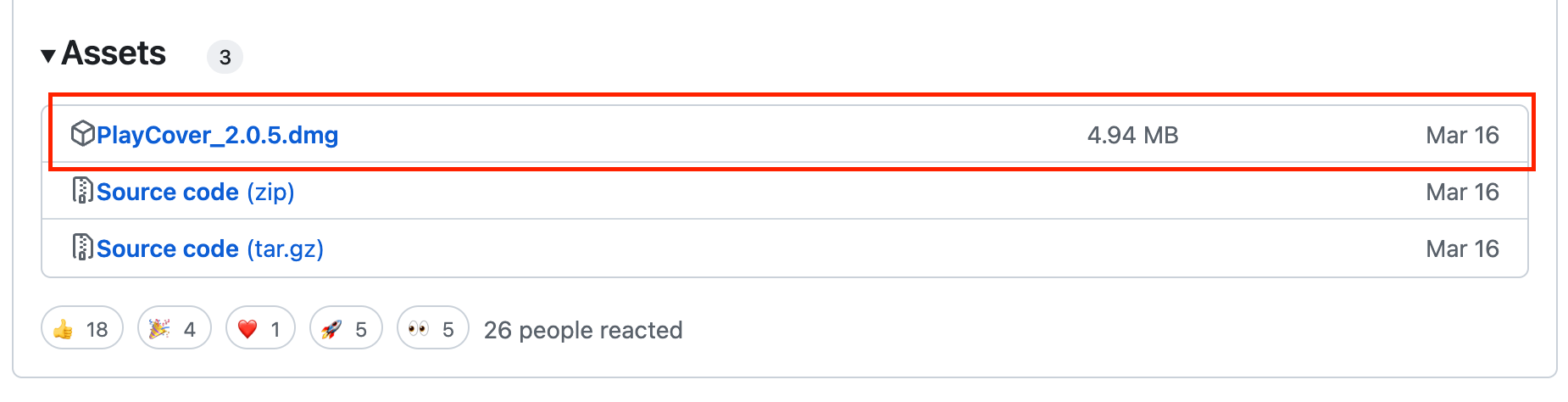
If you can't open it, you can reply in the background of my official account (what's so fun): playcover
I will put a network disk address, but it may not be the latest one
2. Download iOS software
Provides two websites for downloading iOS software (ipa):
If you can't find the iOS software you want to download on the two websites, you can try searching for "software name + ipa" and make good use of the search engine.
3. Install iOS software
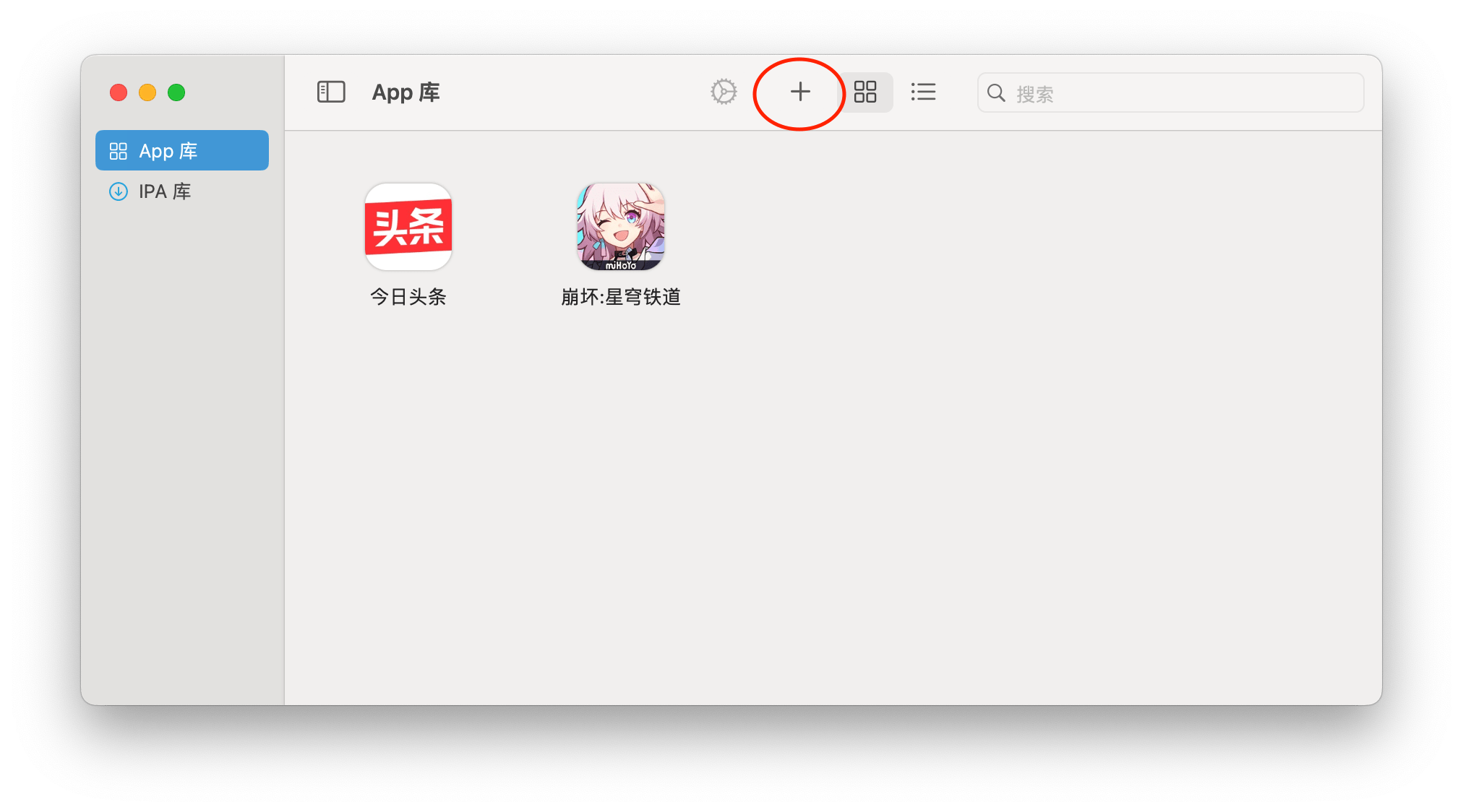
Click the "➕" sign to install the ios software you downloaded and double-click to run it.
Another way is to add the ipa source. I don't think it is necessary. After all, it is not commonly used. If you need it, you can find it yourself.
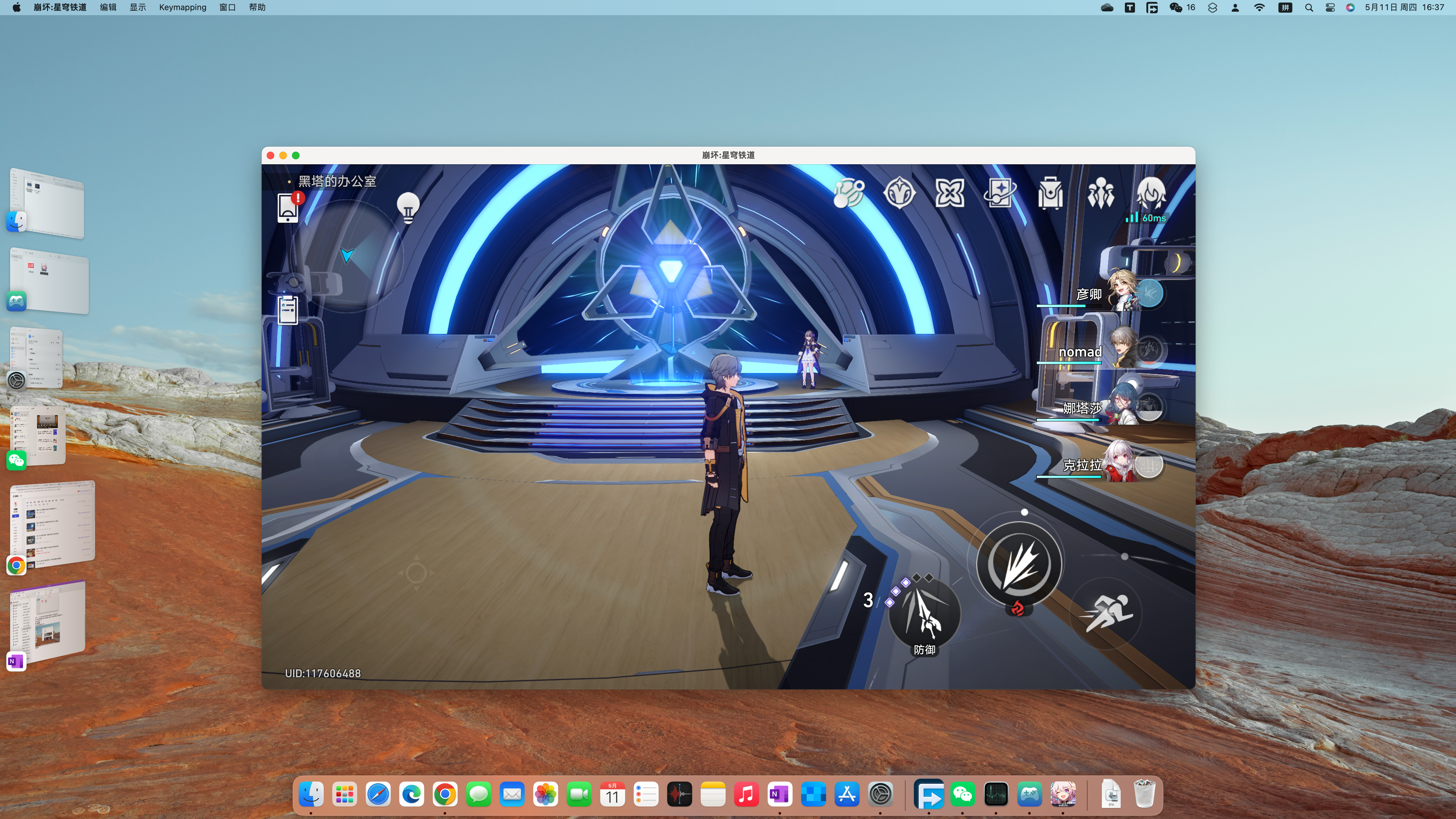
4. Run interface
The running interface probably looks like this:

game interface:
5. Operation tutorial
Regarding playcover, there are many tutorials on downloading and installing it, but few tutorials on how to set it up.
Below are some settings operations for reference by friends who don’t know.
1. How to set the screen resolution
Right-click the App icon and select "Settings"
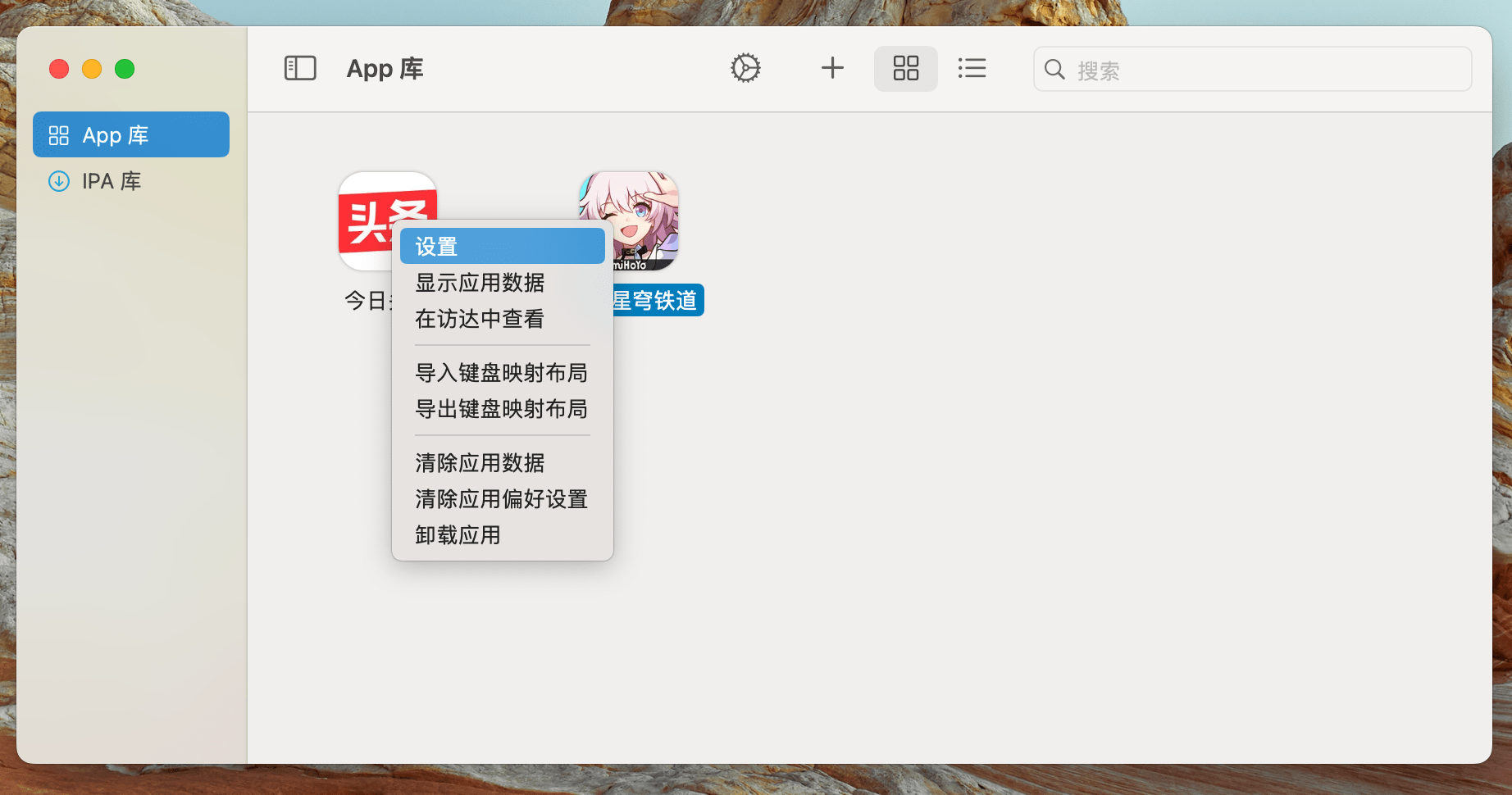
Select "Image Settings" to select "ios model" and adjust "Resolution"
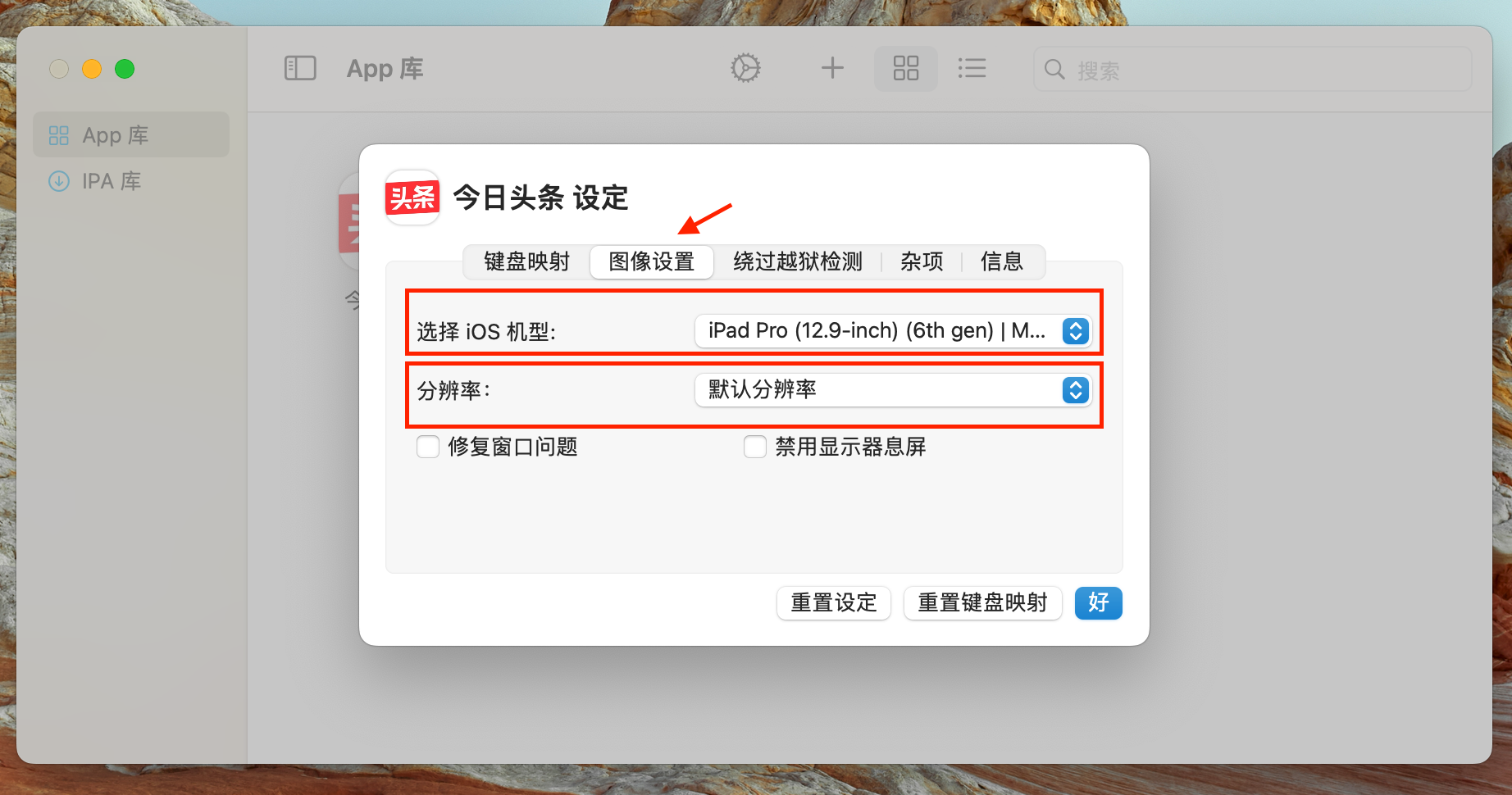
If the settings are accidentally messed up, select "Reset Settings".
2. How to perform keyboard and mouse/controller mapping
First you need to enter the game and then select "Settings" on the top menu
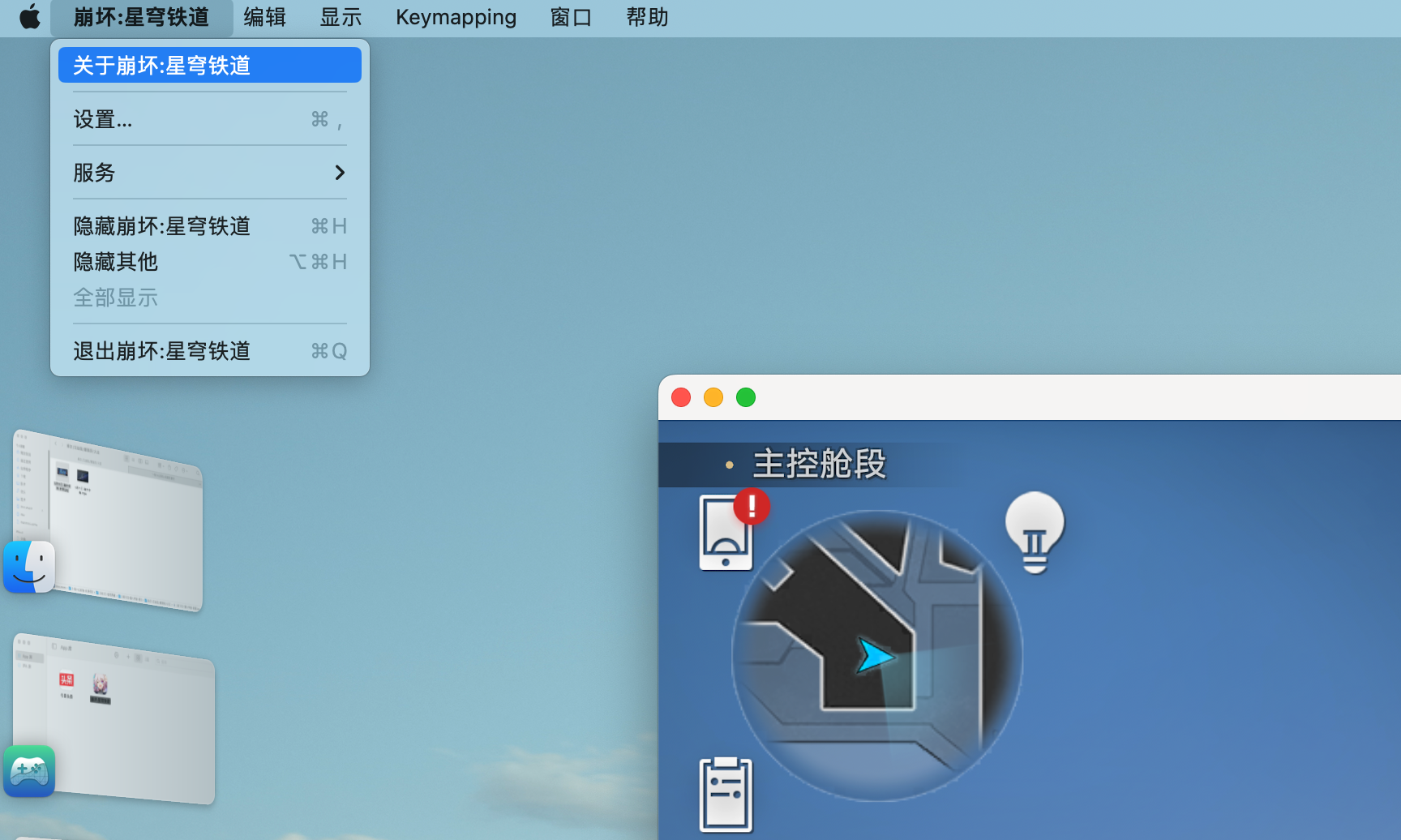
Just select "Touch Alternative" or "Game Control" to turn it on, and pay attention to familiarizing yourself with the keys;
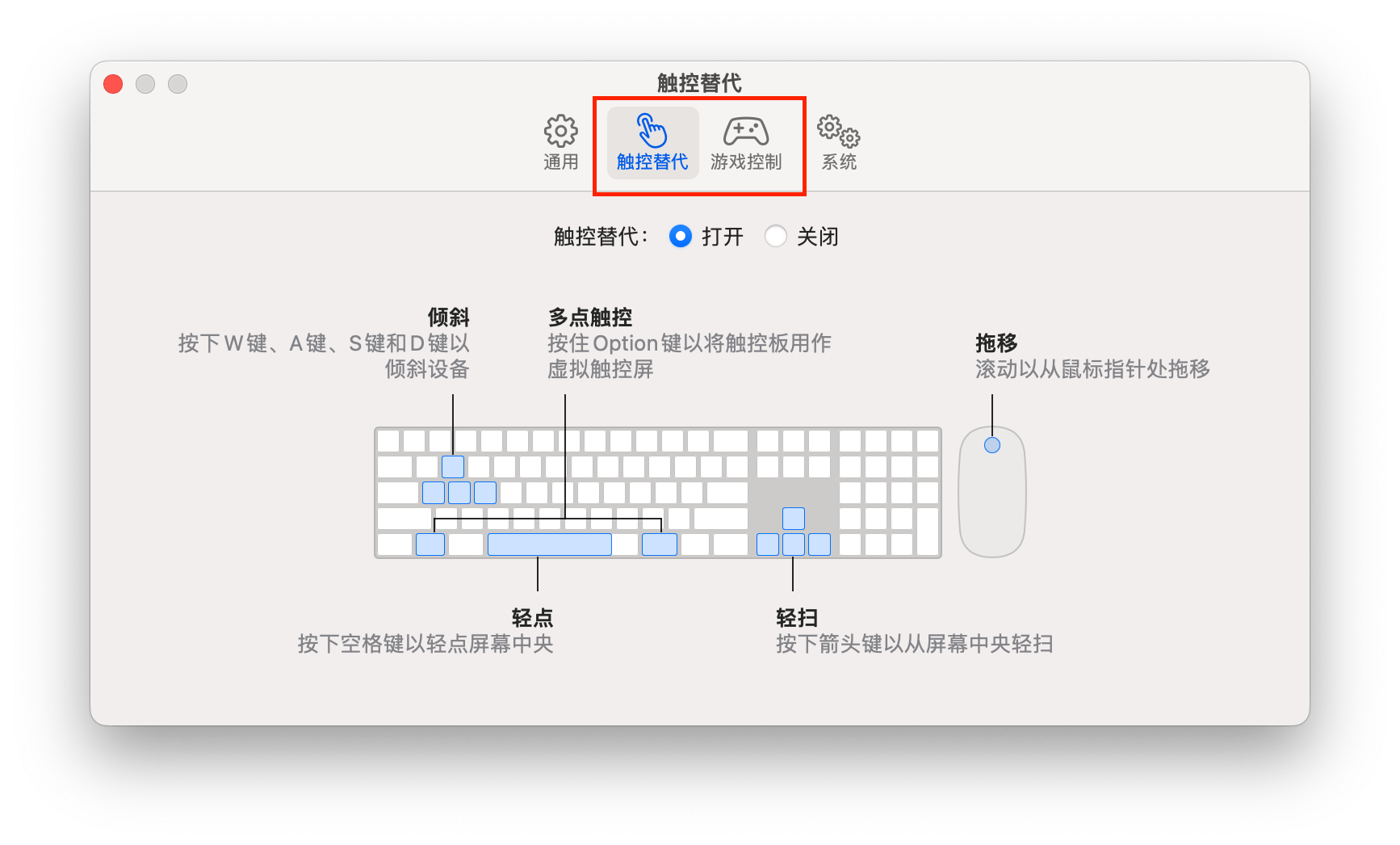
But if the game does not support keyboard, mouse or controller, you need to set it up manually.
First you need to be familiar with two shortcut keys
(1) option: cancel/restore mouse operation
(2) cmd+K: Edit/save mapping keys
When entering the game (app) in playcover, the default is mouse operation. If you want to switch to keyboard and mouse mapping, just click "option". At this time, the mouse cursor will disappear. If you need to jump out of the playcover interface, or use the mouse to select the top menu, press "option" again. I struggled for a long time with finding the mouse cursor.
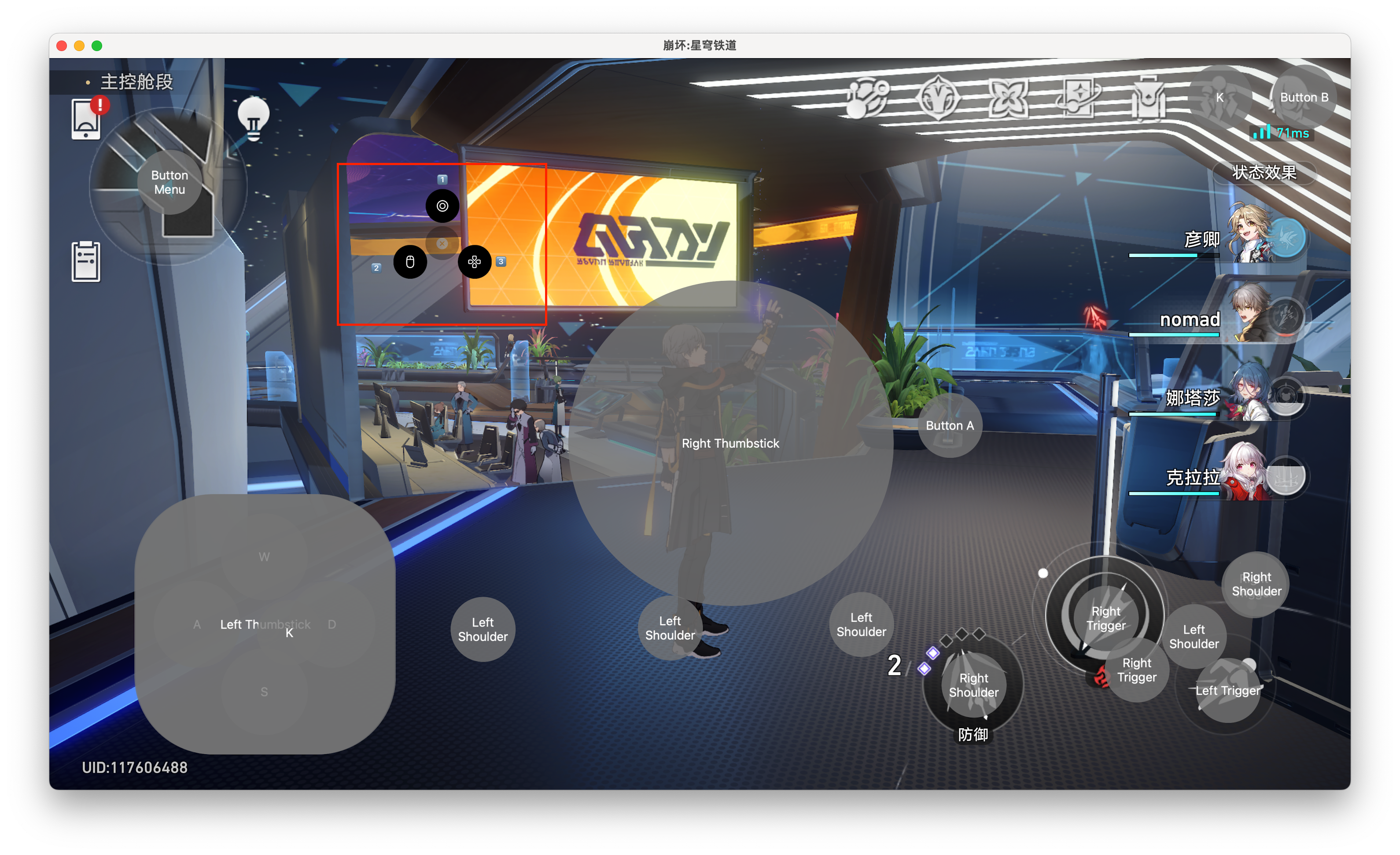
"cmd+K" is easy to understand. Press once to enter mapping settings and press again to save.
After pressing "cmd+K", click the left mouse button, and the three logos I drew in red boxes will appear. This is the type of mapping, representing:
①:Click
②:Mouse
③:Direction
For example, if you want to set the direction keys, select ③ first. If you use the keyboard, it is the default "wsad"; if you use a handle, press the left joystick.
In the picture above, I mapped the Xbox controller, and the arrow keys are the left joystick.
Because the iOS version of "Star Railroad" currently does not support controllers, setting it up is very troublesome.
6. Usage experience
If the game supports controllers, Playcover will probably have a good experience, otherwise not many people will use it to play "Genshin Impact". But if it's a game like "Star Iron" that doesn't support controllers, and there are so many button options, mapping is very troublesome, and it feels like there aren't enough controller buttons. So some people will complain: This is not the operating logic of a mobile game.
Despite this, you can still use the "option" switching mechanism to run the map using a controller and automatic combat. When you need to manually or select, you can switch the mouse. This is considered a linkage between the controller and the mouse.
[Perhaps, using a controller to play the PC version of Star Iron is a good choice...]
Okay, if you see this and find it useful, just follow it.
I will continue to share my experience using macOS.
