This is a tutorial to solve the problem of connecting to the Internet on the 2022 Apple TV 4K. The prerequisite is to have a Mac computer with macOS 12.4 or above. If not, other methods are needed.
Let’s talk about the effects first: After completing the http proxy settings on Apple TV 4K, you can’t watch Youtube, and other software is normal. This is also true after actual testing. YouTube cannot be opened, but watching Netflix is no problem.
In the network settings of the 2022 Apple TV 4K, you can only manually set the IP, router and DNS, and cannot set up an http proxy like an iPhone or Mac computer.
However, by installing Configurator on your Mac computer and configuring the description file for Apple TV, you can implement http proxy settings.
If you have no way to solve the Internet access problem at the routing level, configuring an http proxy on Apple TV and implementing it with iOS or Android mobile software can be a compromise.
I will put the complete settings of Apple TV and mobile phone on the website, click "Read the original text" to go directly. This article will only briefly share the settings of Apple TV.
1. Mac computer side
Search configurator directly in AppStore:

If your macOS version is lower than 12.4, it will look like this:

2. Apple TV
Please open the following path:
Settings—Remote Control and Devices—“Remote Control” App and Devices

3. Device pairing
Open the configurator on your Mac and select "Paired Devices"
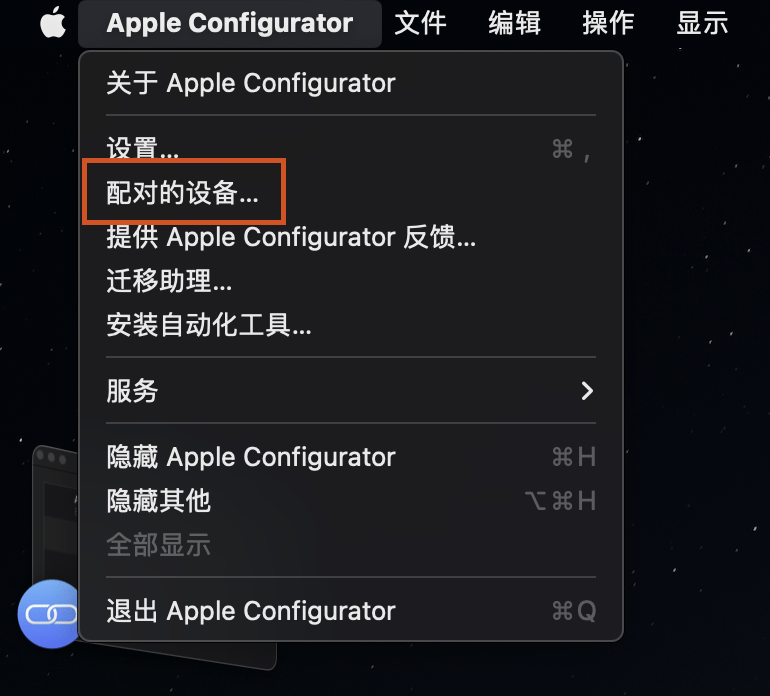
After pairing is completed, the page looks like this:
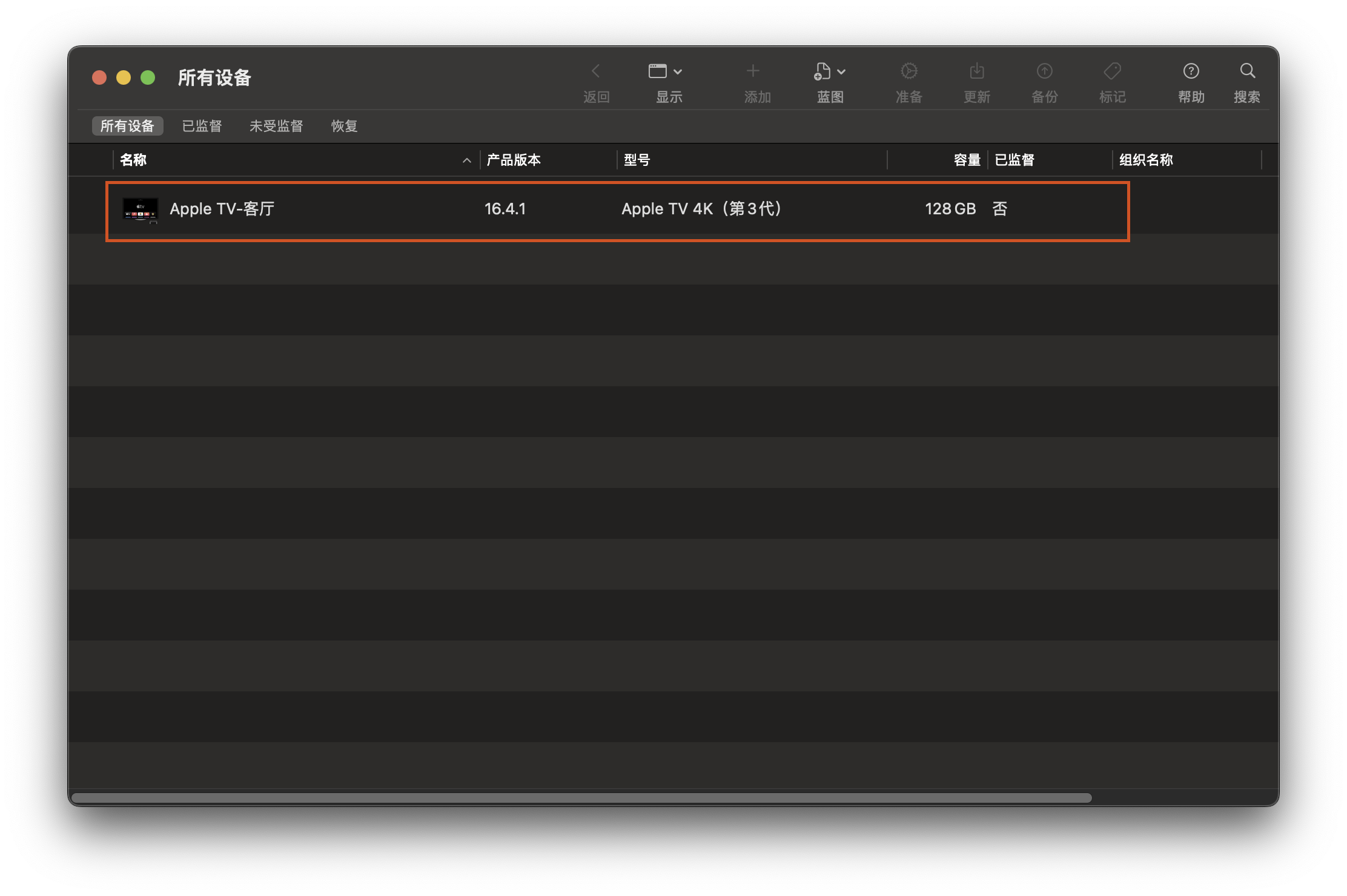
Then double-click to enter:
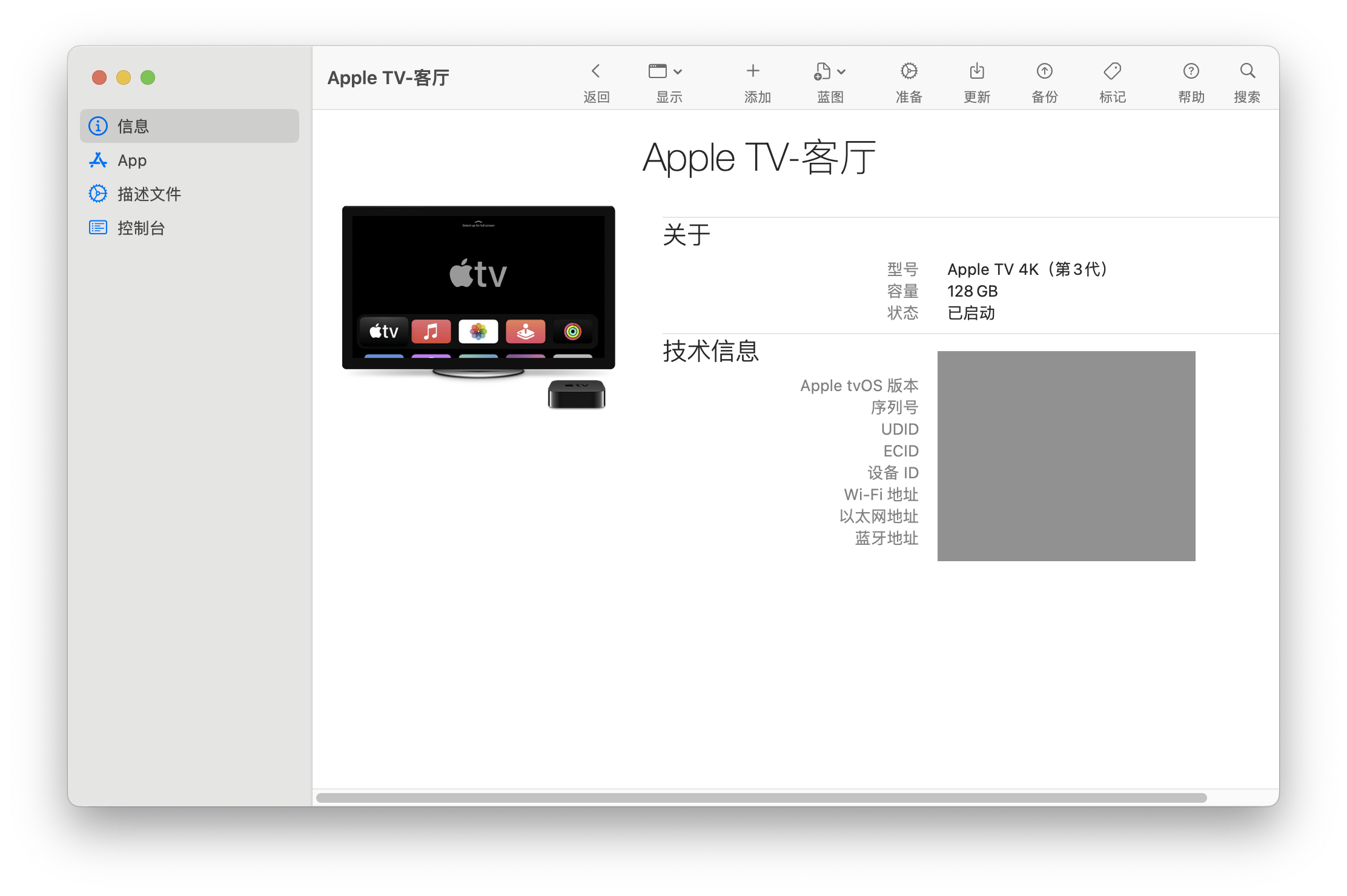
4. Add description file
1. In "File" in the configurator, select "Newly Create Description File"
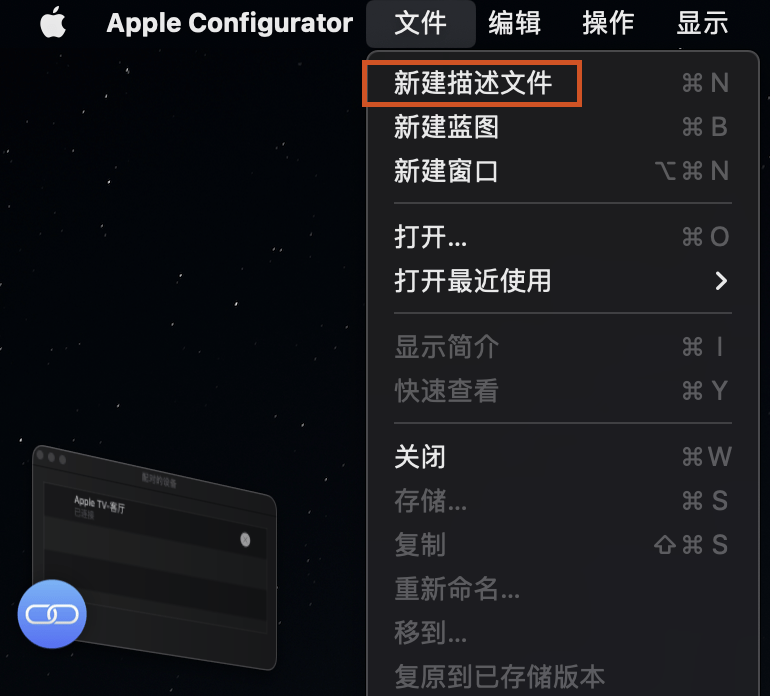
2. Give the description file a name. This step is optional;
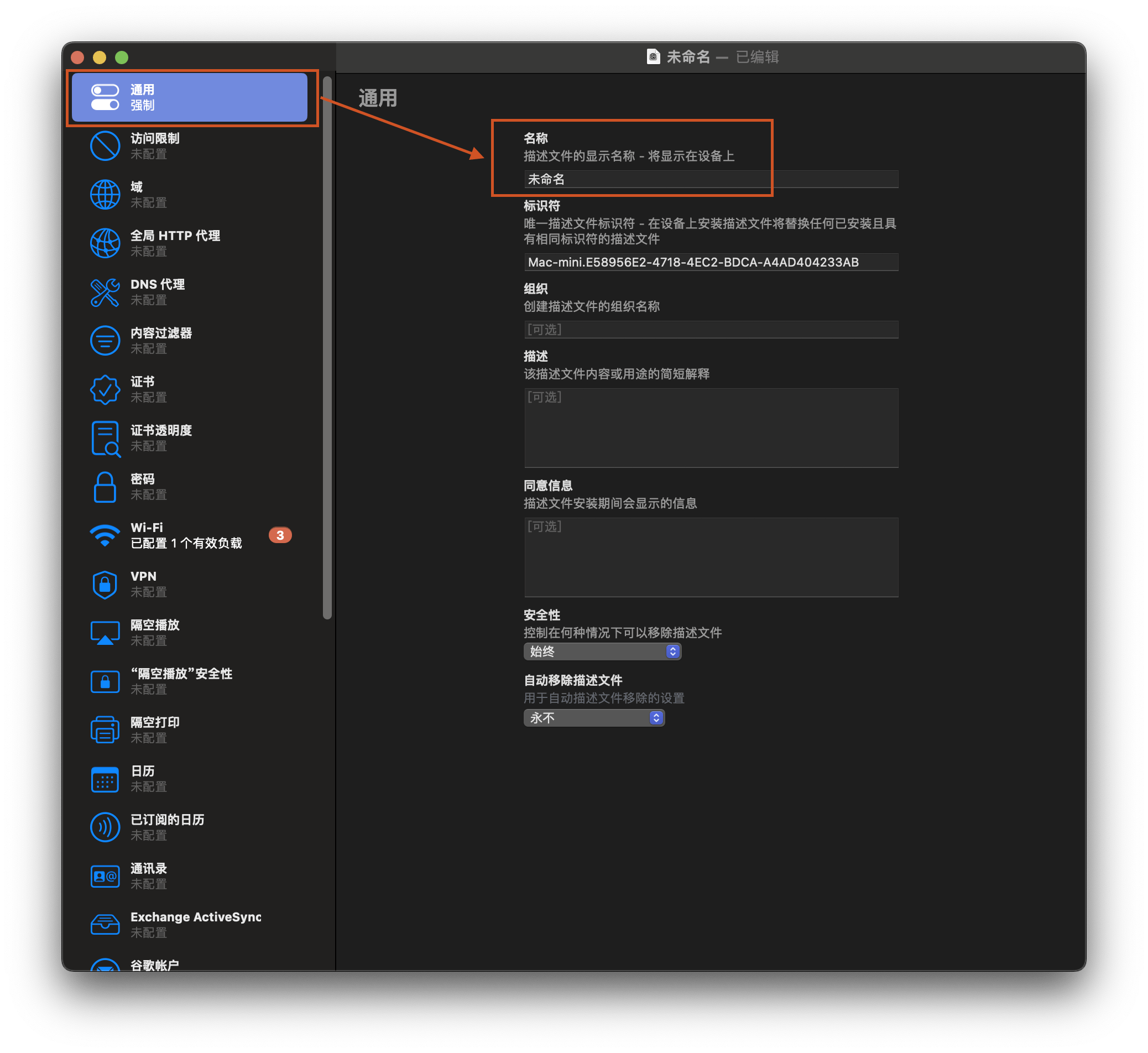
3. Select "Wi-Fi", (1) write the name of your Wi-Fi; (2) write the IP and port of the proxy server; (3) write the password of the Wi-Fi; and then save.
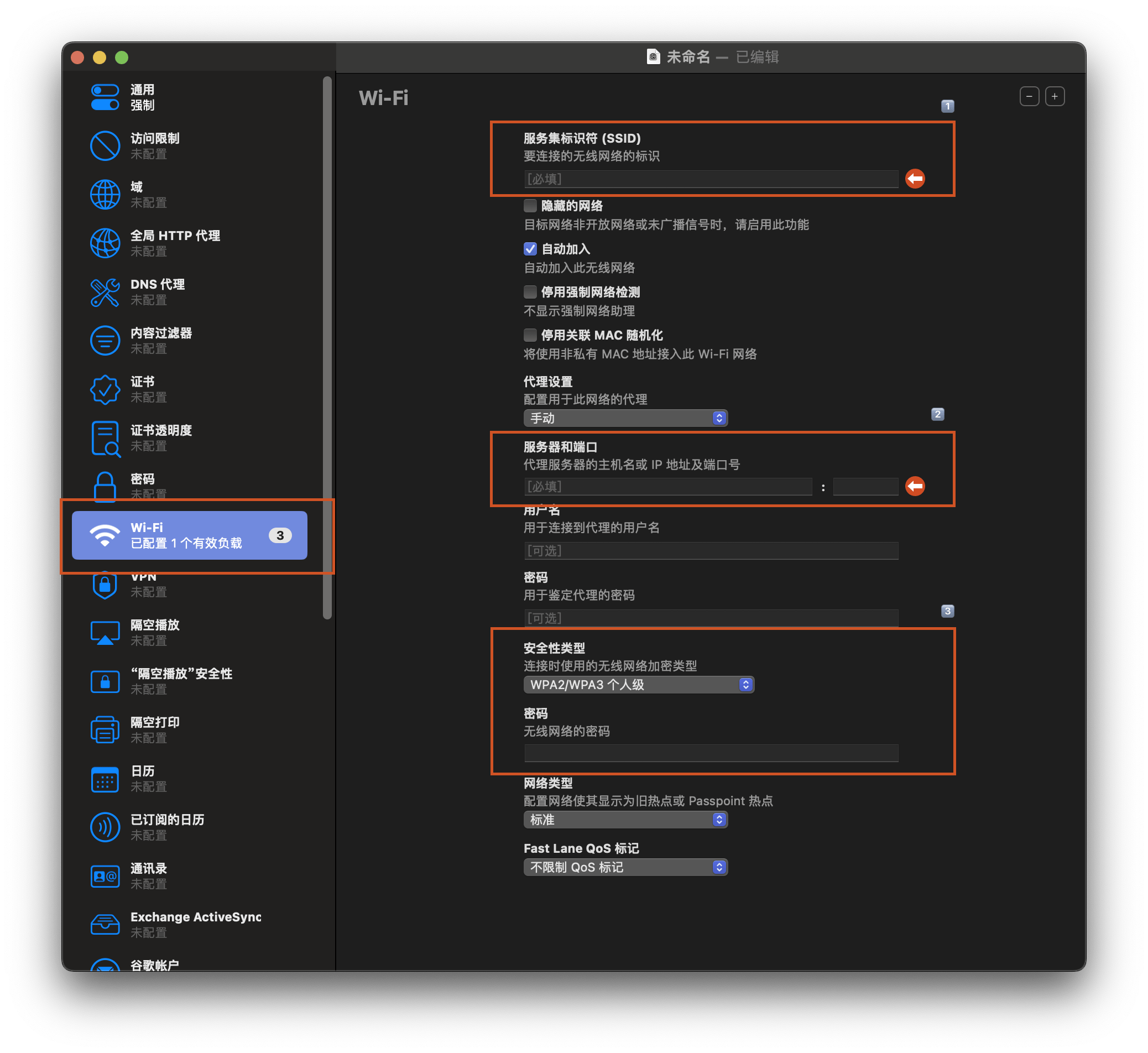
4. As for why not to set a global http proxy, I saw some ups saying so.
I originally wanted to try it, but because my Netflix account expired when I was writing this article, YouTube couldn’t verify it, and I didn’t use other apps, I couldn’t test it.
5. Add the description file to Apple TV, or you can drag the description file directly into
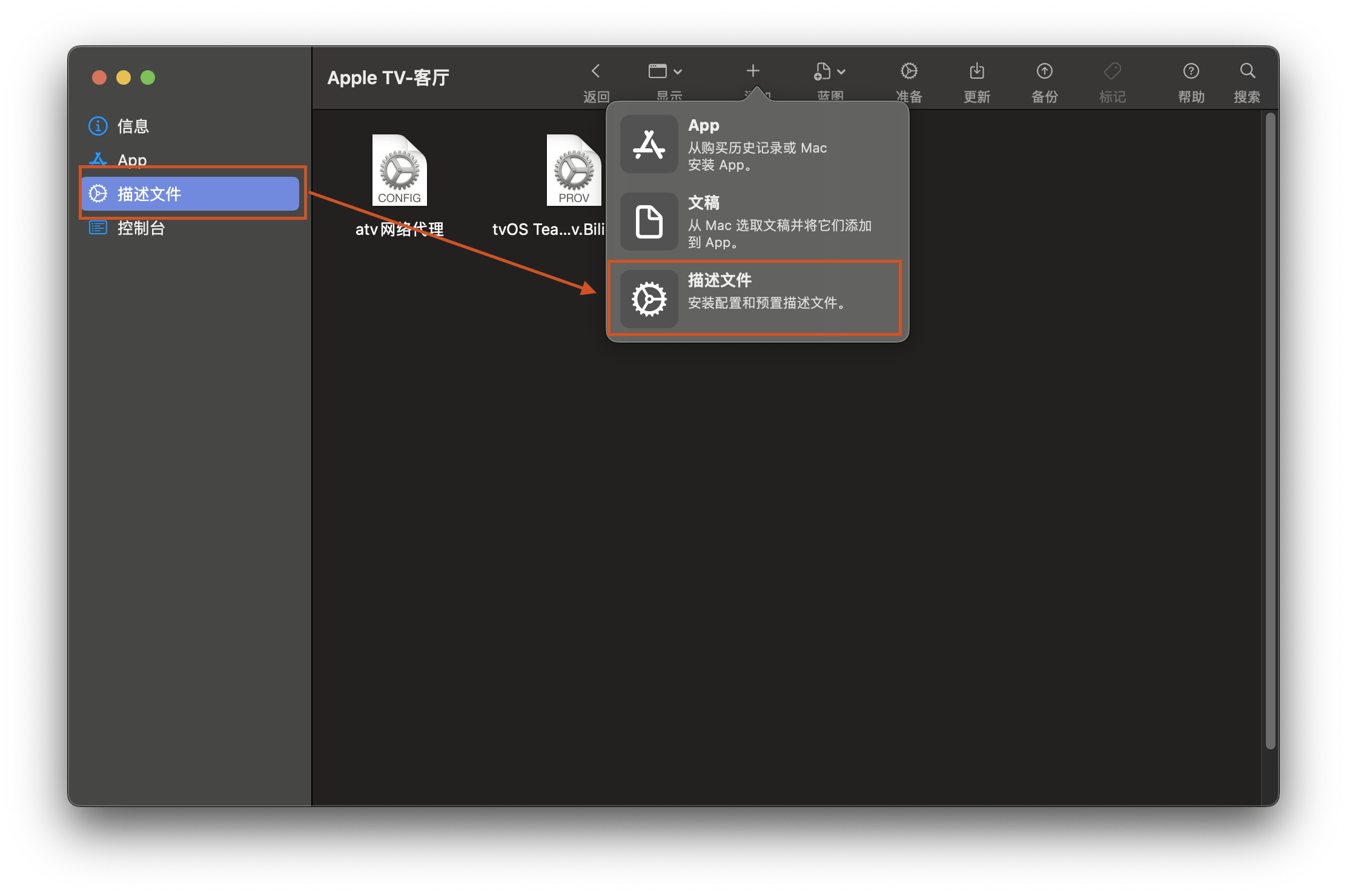
6. Click "Install" on Apple TV

Finally, after restarting Apple TV, switch to Wi-Fi link and the configuration is successful.
5. Remove the description file
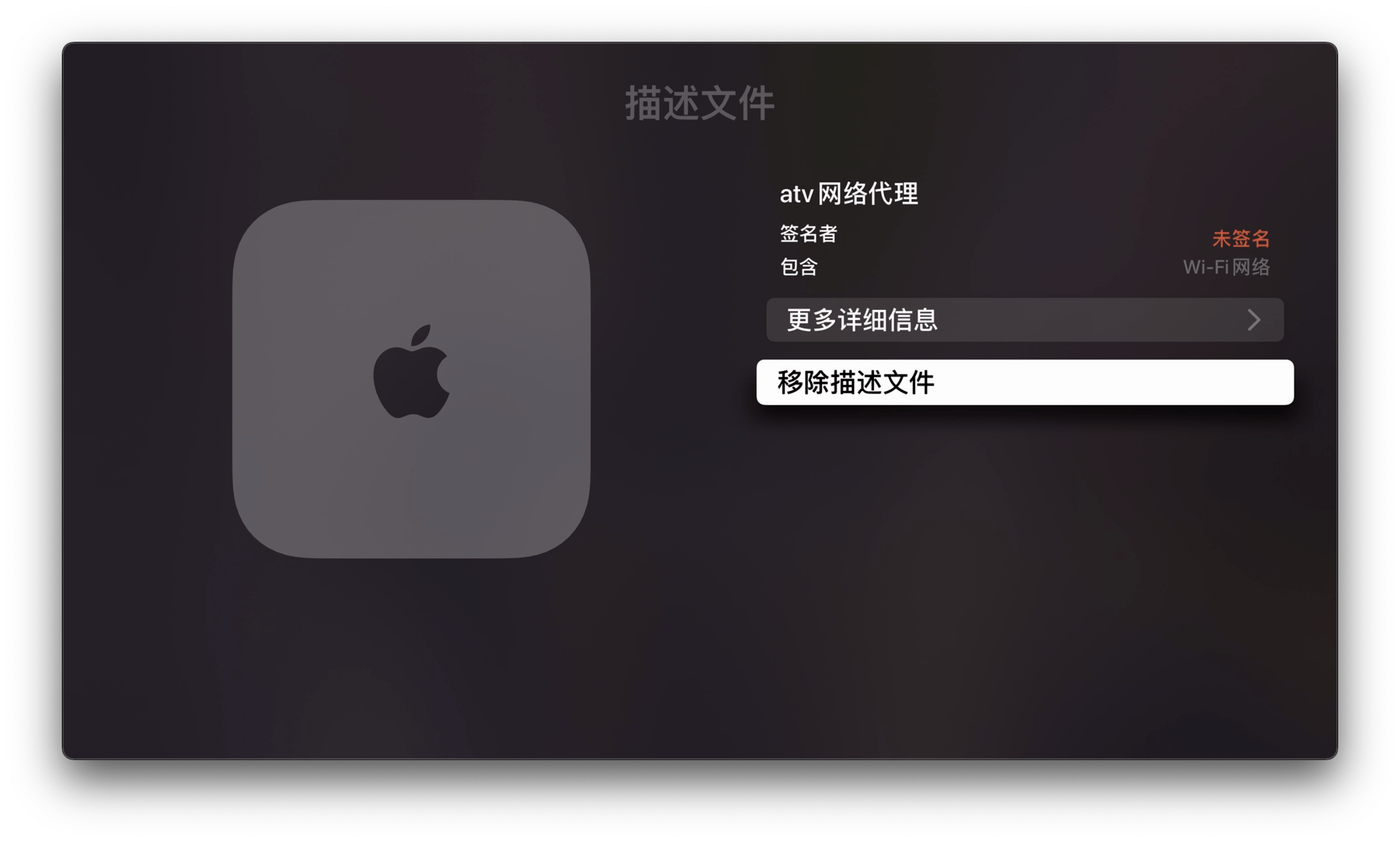
If you want to remove the profile, you can select "General" in the Apple TV settings, scroll down to the end, you can see "Profile", and then remove it.
Okay, if you see this and find it useful, just follow it.
