alist is a tool that can mount multiple network disks. It can be installed in computers, routers, nas, online servers and even Android phones. After installing alist, you can mount more than 20 types of network disks including Alibaba Cloud Disk, Baidu Cloud Disk, Google Cloud Disk, and local storage together.
The most commonly used entertainment purpose: mount your own or other people's network disk video resources, and then use a playback tool that supports the WebDAV protocol to watch.
Regarding basic operations, alist official has a very detailed operation guide. Students who are unfamiliar with it can read here:
To use alist well, you generally need a device that can be mounted 24 hours a day, most commonly used for NAS or routing.
However, routers of different brands and models require different firmware, which may cause them to become bricked accidentally. At the same time, not everyone needs or has the necessity to purchase a NAS. Therefore, if you want to experience alsit, using an idle Android phone or Replit is a good choice.
This article starts with how to install alist on an Android phone.
1. Preparation
1. An idle Android phone: no requirements, no need to root, just can be used smoothly;
Recommendation: Set the mobile phone IP to a static IP. There are two types of routing settings and mobile phone settings. You can use Baidu yourself.
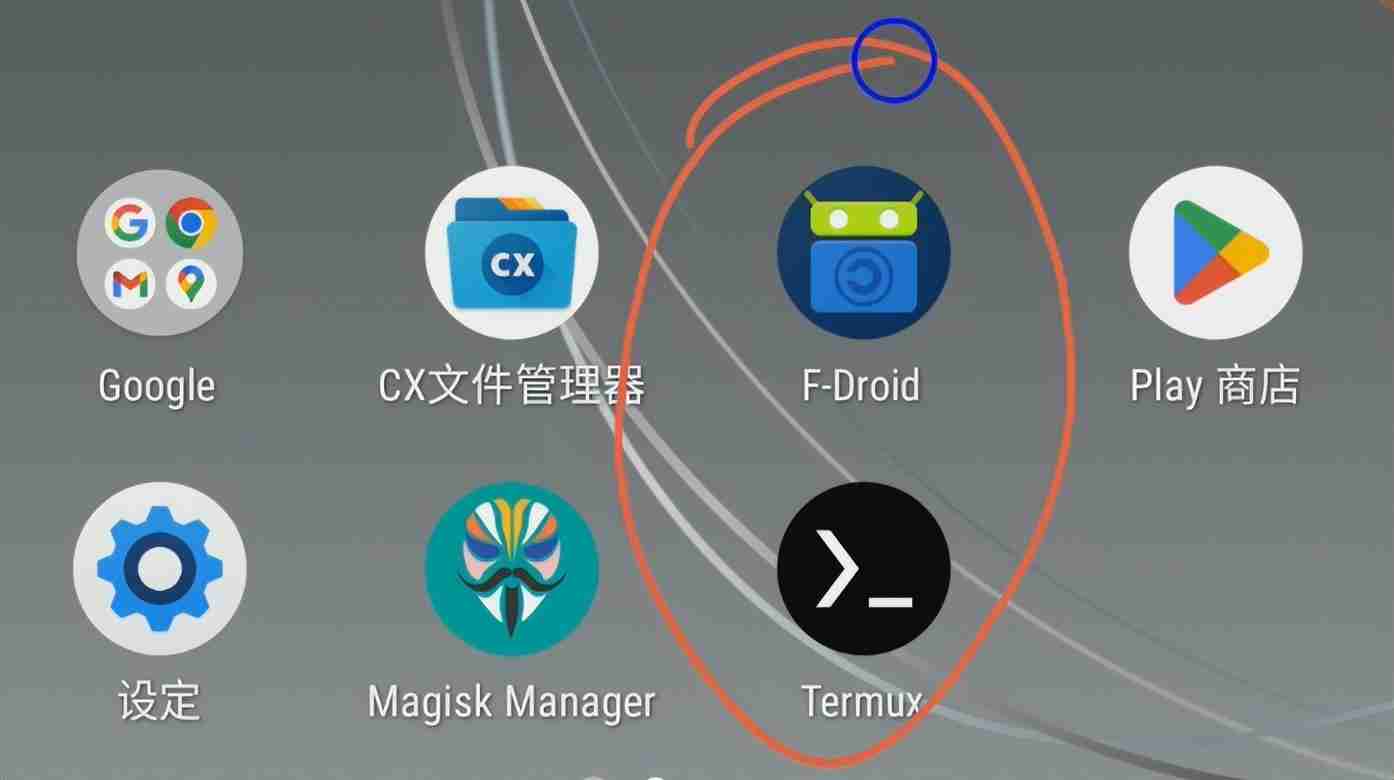
2. Install software: F-Droid
[Backend reply: fdroid, get the software directly]
3. Install software: termux
[Search termux installation in F-Droid, try not to search and install it in other application stores]
4. Give termux battery permissions in the "Settings-Applications" of your phone so that it can run in the background and will not be automatically shut down due to power consumption;
5. It is strongly recommended to use the Internet scientifically, otherwise you will have to learn to change the installation source for termux, and other problems that may arise.
2. Install alist
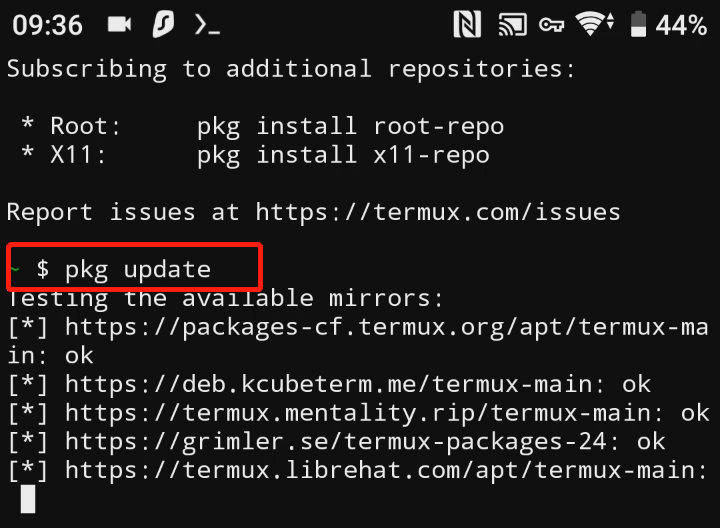
1. Open termux, update the software package first, and enter the following code
pkg update
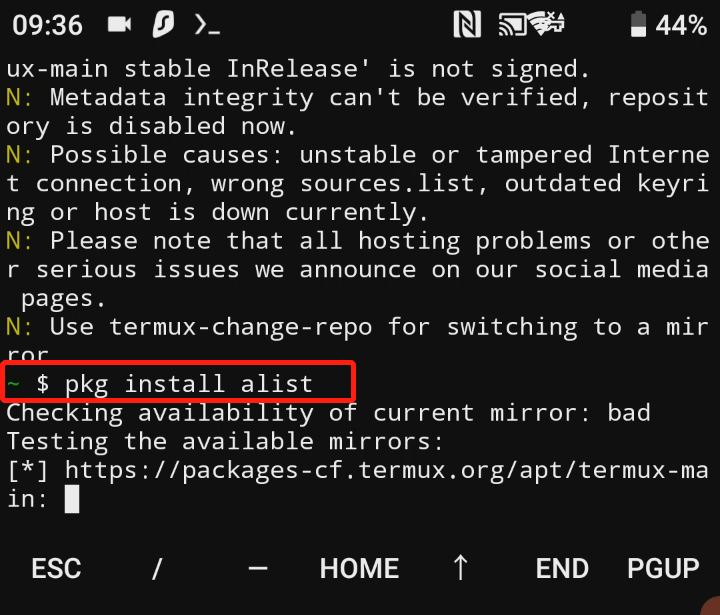
2. Install alist
pkg install alist
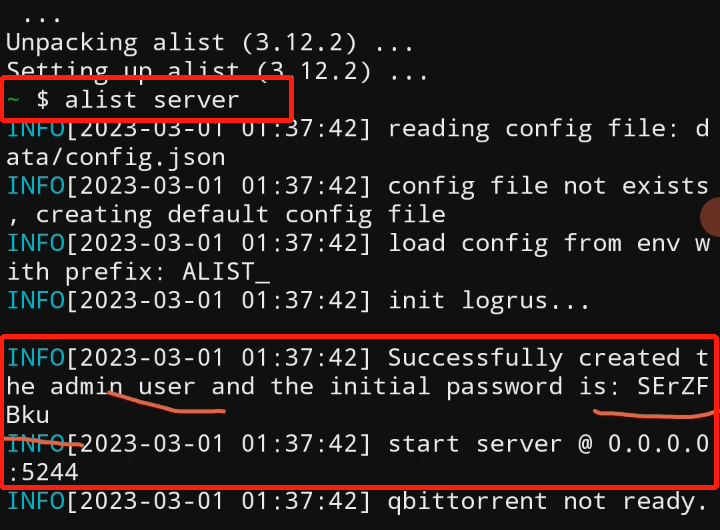
3. Start the alist service
alist server
When starting alist for the first time, you need to find the initial account password in the code:
Default account: admin
The default password is after password, you need to take a note of it.
Default port: 5244
3. Configure alist
1. How to log in
As long as your computer and mobile phone are in the same LAN, you can log in by entering the following address:
http://mobile ip:5244
For example, my mobile phone IP is 192.168.79.4. To log in, I need to enter: http://192.168.79.4:5244
2. Change password
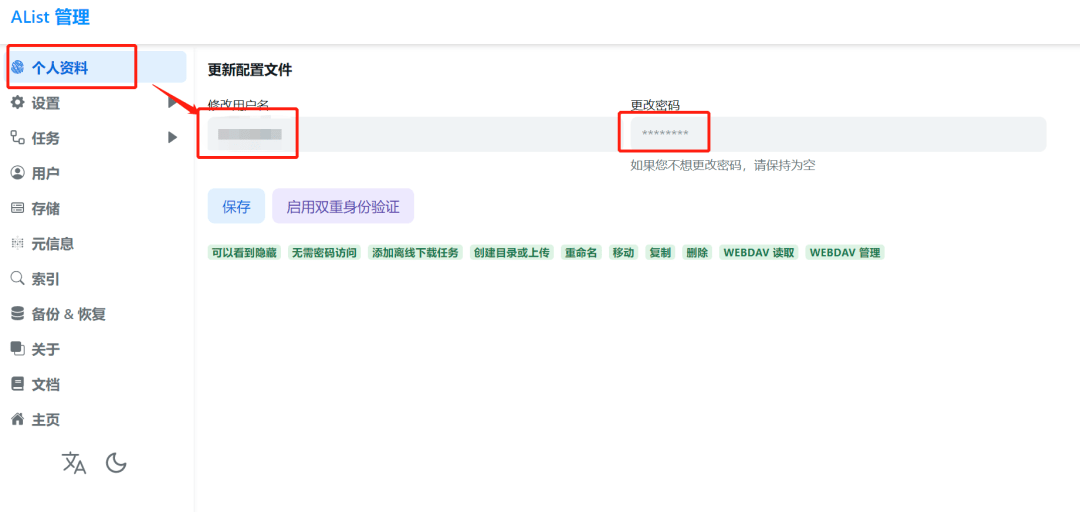
Modify login account and password in "Personal Information"
3. Account security
If you have a public IP, it is recommended to disable all "guest" permissions in "User" and consider setting a password for sensitive information in "Meta Information".
Of course, the best way is not to upload sensitive information. Just play some audio videos and e-books.
4. Mount the network disk
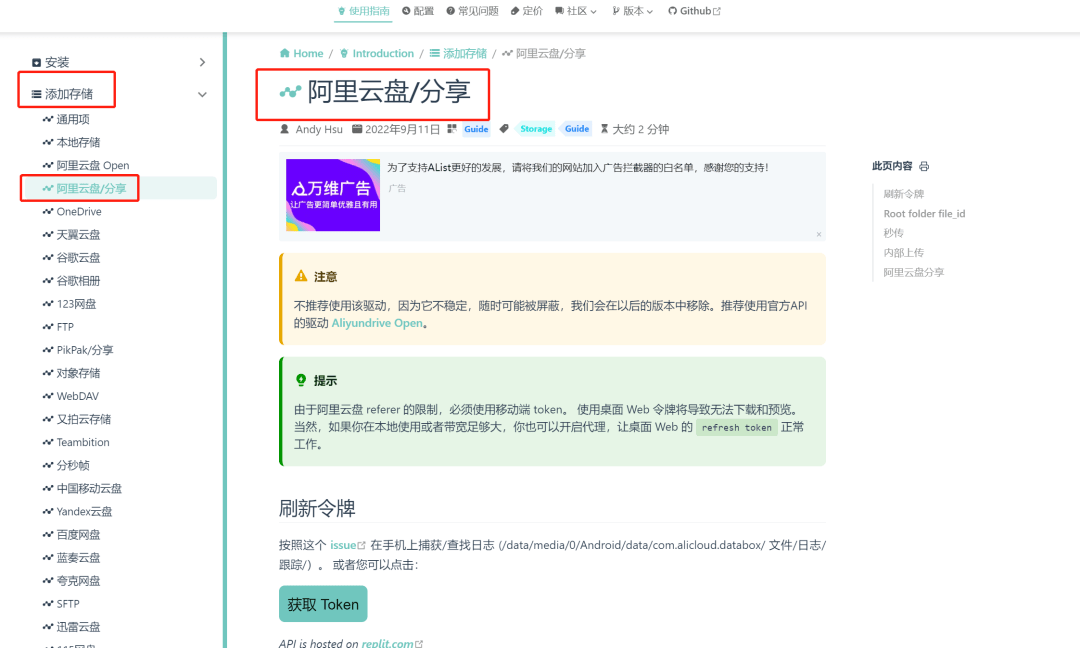
Click "Storage" and select the network disk you need to configure. If you don’t know how to set it up, you can follow the operation guide to learn:
4. Use alist
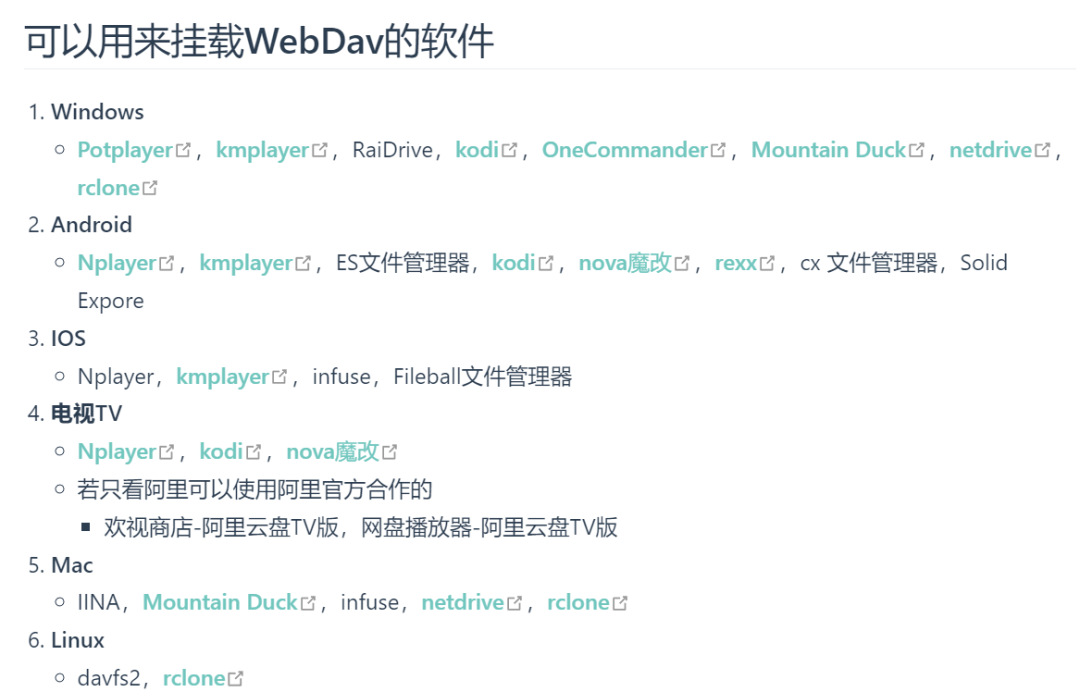
After you configure alist on the mobile phone, you can view the network disk content mounted by alist on other terminals.
The specific terminals and tools used are as follows:
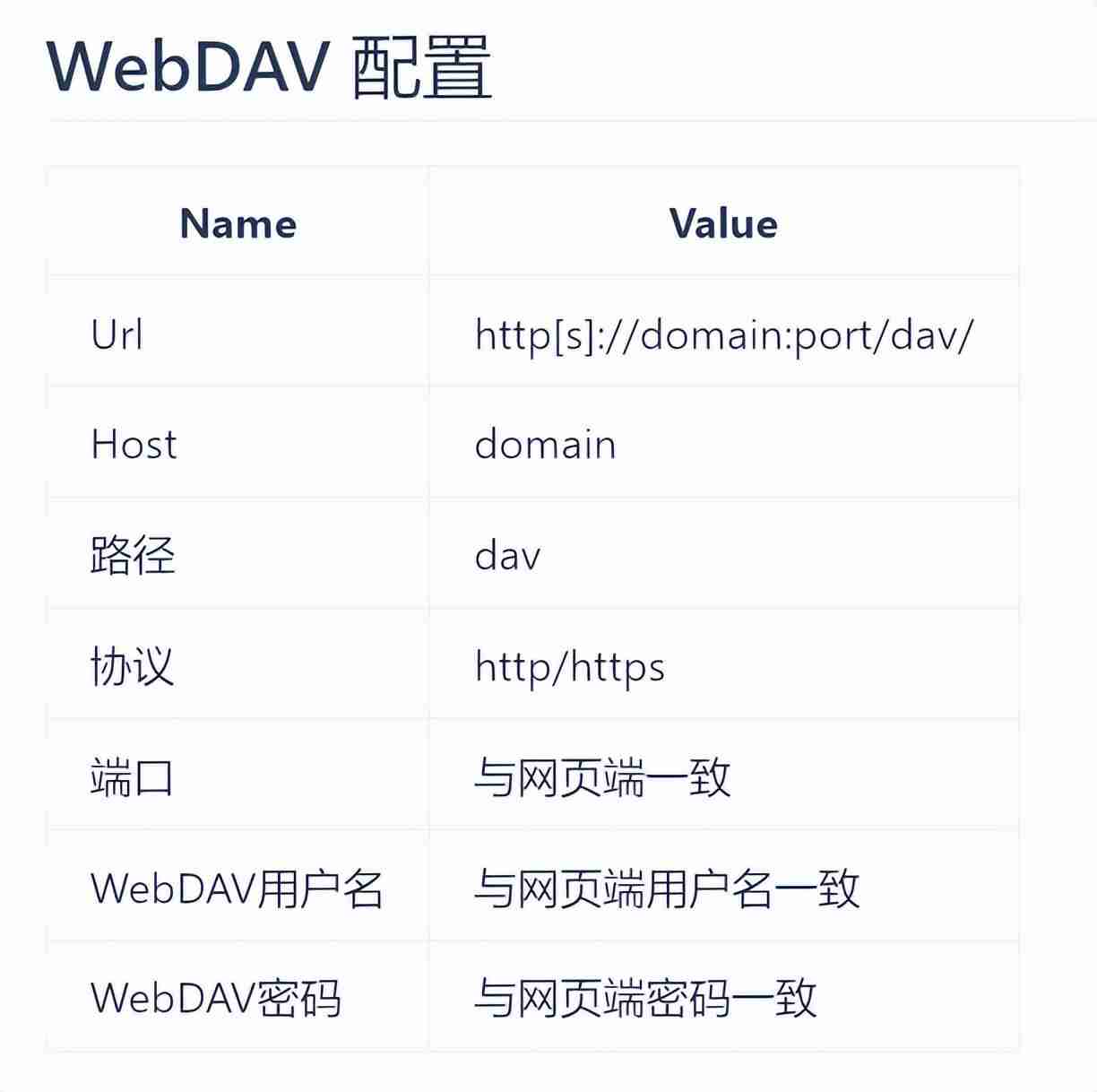
I won’t mention the specific mounting method, as each software is different. There's usually nothing wrong with following this configuration:
The players I use most often are Plex and infuse, and you can choose according to your needs.
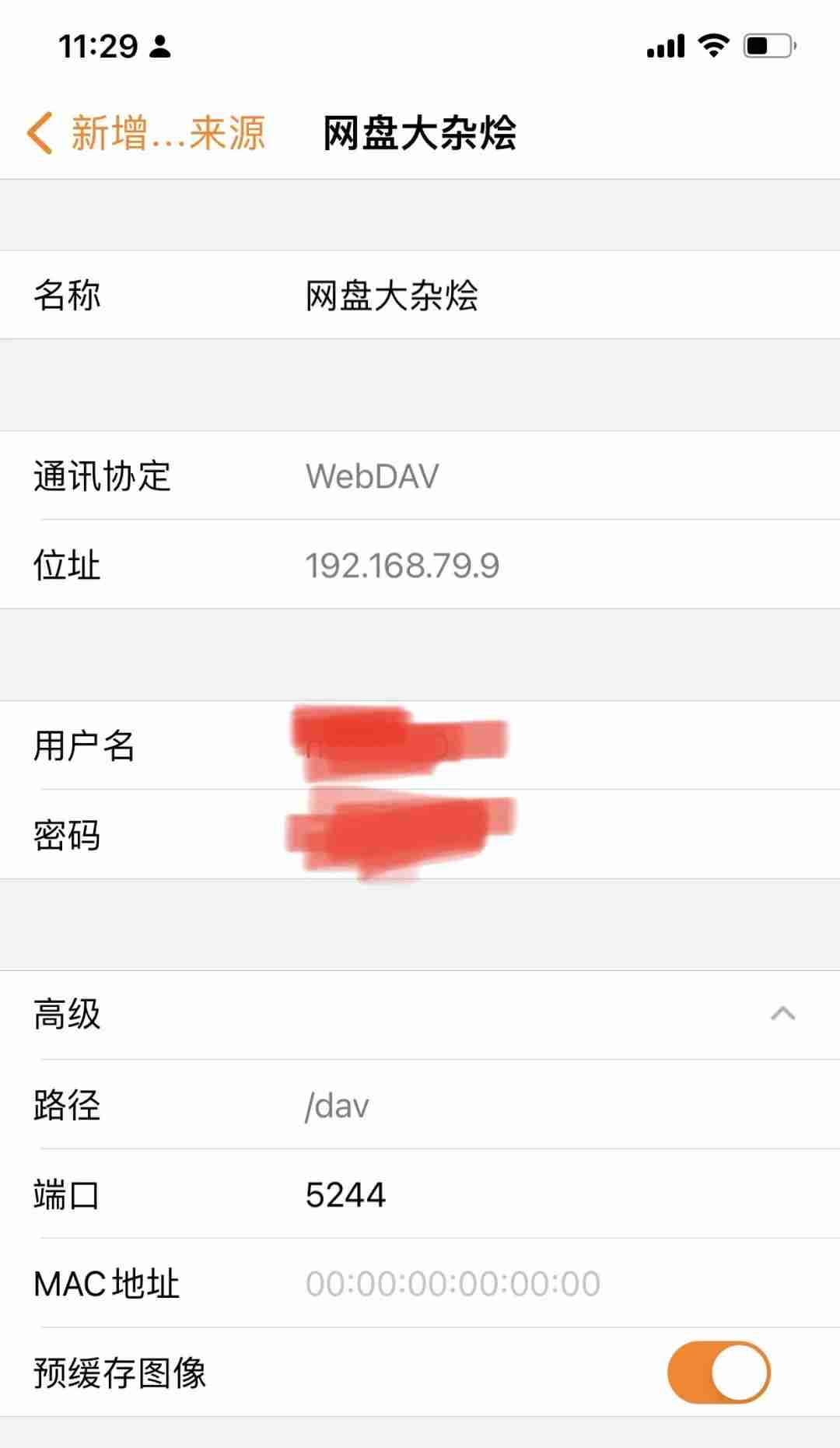
[This is my setting on infuse, students who are not familiar with it can refer to it]
Finally, let’s talk about the experience: as long as the Internet speed does not hold back, at least 4K videos (about 100G) with a bit rate within 200M will not be laggy when viewed online. In this way, you can happily watch various network disk videos on TV.
If you find it useful, please follow it~

1