exist Windows 11 , file extensions are hidden by default. This is to prevent users from misoperation, resulting in file damage. However, if you need to see the file extension, you can modify it by following the steps below.

Step 1: Open File Explorer
First, we need to openWindows 11File Explorer in . This is your primary tool for managing files and folders.
You can find the folder icon below the taskbar. This icon is usually a yellow folder that you can click to open File Explorer.
Step 2: Open Folder Options
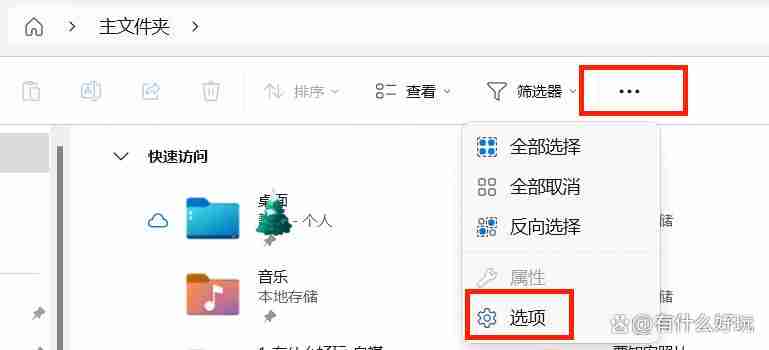
Once File Explorer opens, now we need to head to Folder Options to change the display settings for file extensions.
In the menu bar at the top of File Explorer, click "Options" under "...". This will bring up a new option on the screen.
Step 3: Show file extensions
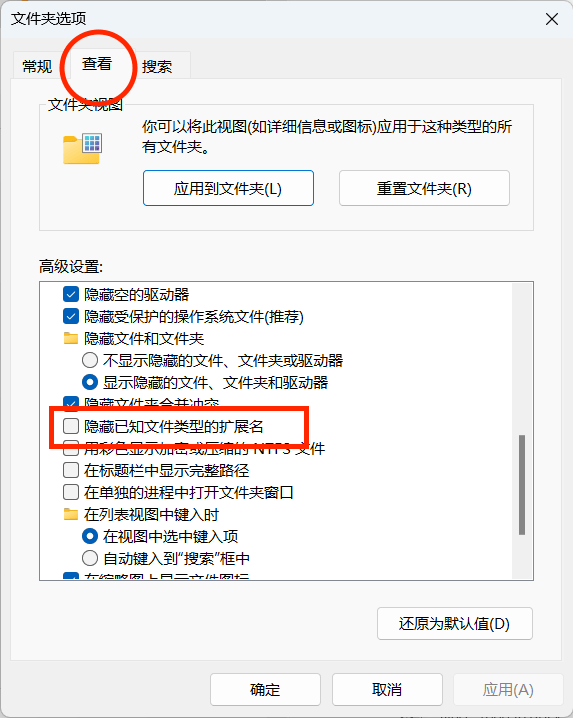
Next, we need to find the “Folder and Search Options” to display file extensions.
In the newly opened window, switch to the View tab. Under this tab, you will see a list with an option labeled "Hide extensions for known file types." This option is checked by default, which causes file extensions to be hidden. To show extensions, you need to uncheck this option.
Step 4: Confirm changes
Once you have unchecked the "Hide extensions for known file types" option, click the "Apply" button and then click the "OK" button to save your changes.
Now, your Windows 11 will display the file’s extension. This will allow you to see file types more clearly and manage and identify them more easily. These detailed steps will help you successfully display file extensions in Windows 11 to improve your file management efficiency.
In addition, there is another way to modify the hidden file extension:
- Search for "Registry Editor" in the taskbar search bar and open Registry Editor.
- In Registry Editor, navigate to the following location:
HKEY_CURRENT_USER\SOFTWARE\Microsoft\Windows\CurrentVersion\Explorer\Advanced - In the right pane, find the "HideFileExtensions" key.
- Double-click the "HideFileExtensions" key and change the "Value Data" to "0".
- Click OK to save changes.
Precautions
Modifying the file hidden suffix may affect the normal operation of some programs.
If you are not familiar with the file extension, please do not modify it at will.
