"Apple Music"Set a scheduled shutdown" was originally just a search topic on Baijiahao. I just thought about using AI to "dot and click", and then publish it, and complete the KPI of my blog. But the results given by ChatGPT/BingChat/Bard were far away. Knowing the big score, I had to start it myself.
When I first looked at this problem, I thought it was very simple.
Which music software doesn’t have a scheduled shutdown function?
But, I sawApple Music, only to realize that I was careless. Although I have always been an Apple Music member, my main software is NetEase Cloud Music. Take it for granted that "scheduled shutdown" can be found everywhere.
Let’s talk about the solutions first, there are two kinds: if you have your hands in front of your head, you can use the “timer” in the system’s built-in application “Clock”; if you want to do something fancy, you can use shortcut commands.
Both methods are suitable for iPhone/iPad/Mac computers.
1. Clock timer
This method is better if your schedule is irregular. Just set it once before going to bed.
1. Open "Clock"
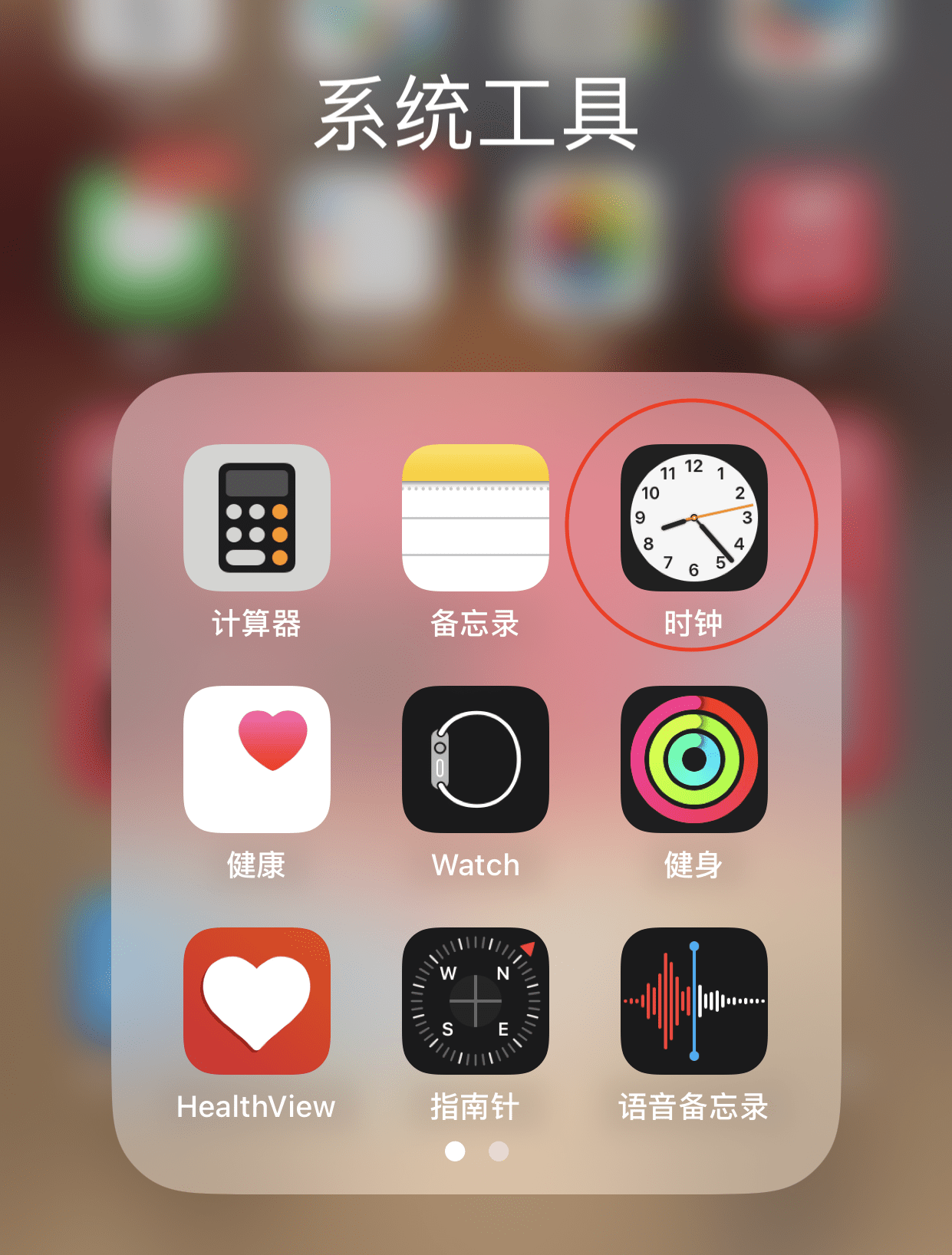
2. In the "Timer" menu at the bottom, select the time you want to listen to the song.
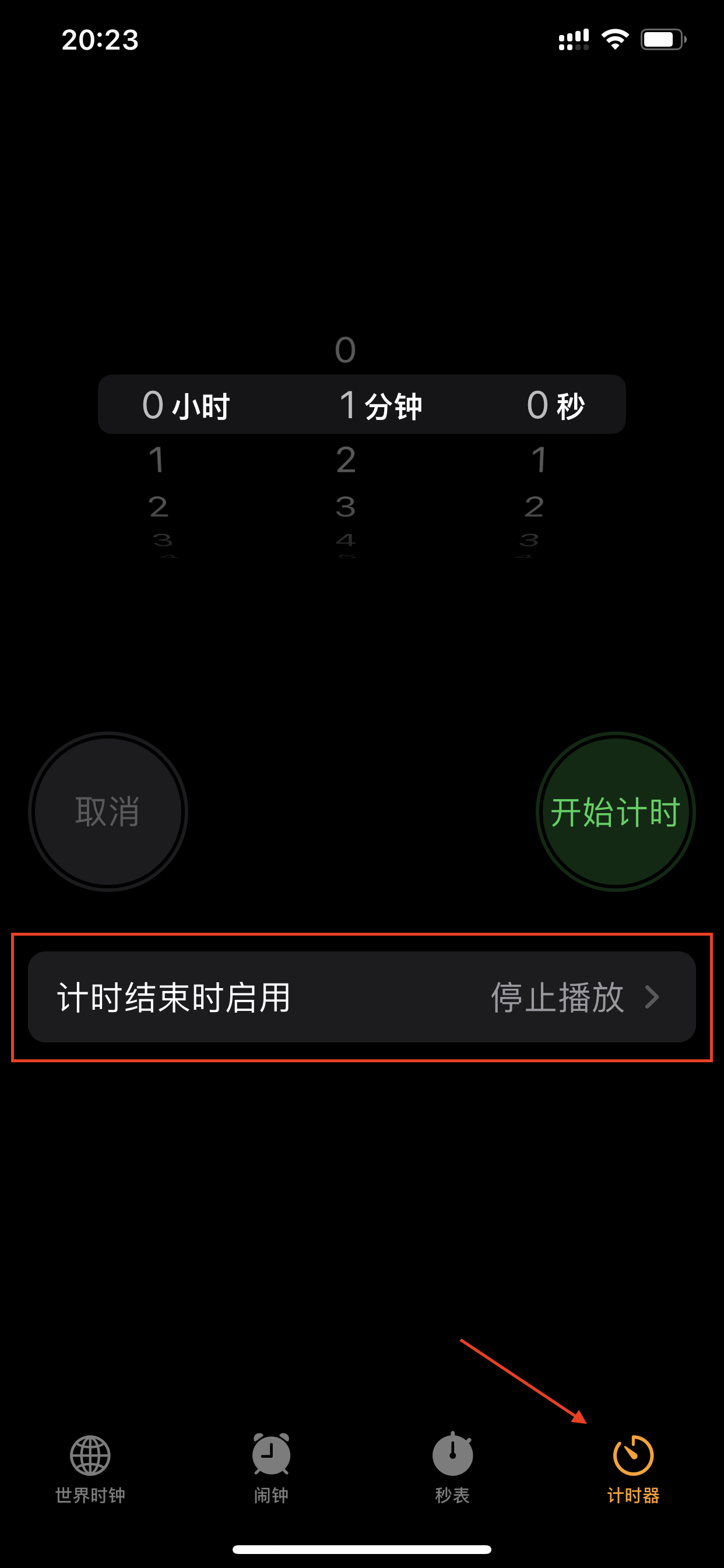
3. Under "Enable when timer ends", change the prompt sound to "Stop playing"
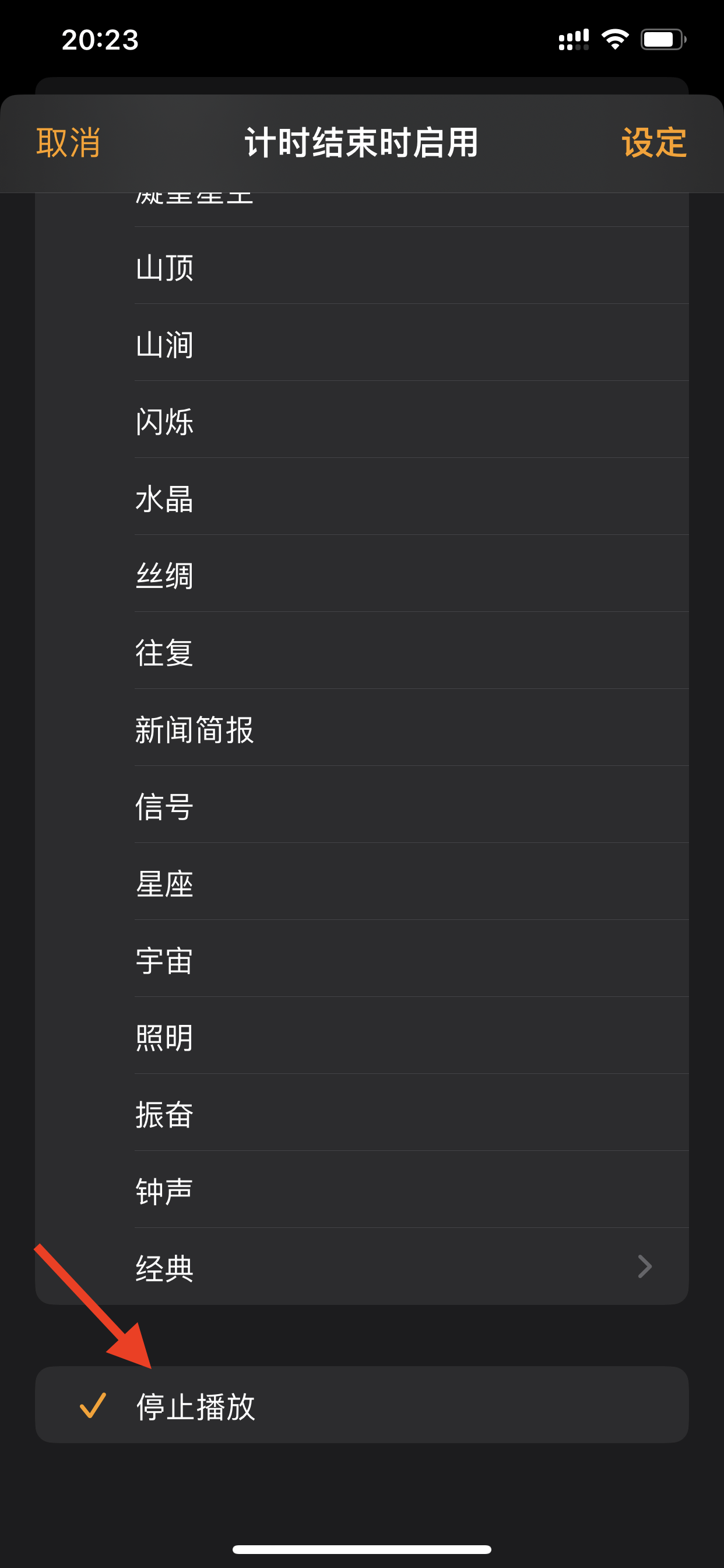
Finish!
two, shortcut command
If you have a regular schedule and like to automate repetitive tasks, shortcut commands will be a good choice.
For example, if you want to turn off the music at 0 o'clock every day, you can do this:
1. Open "Shortcut Commands"
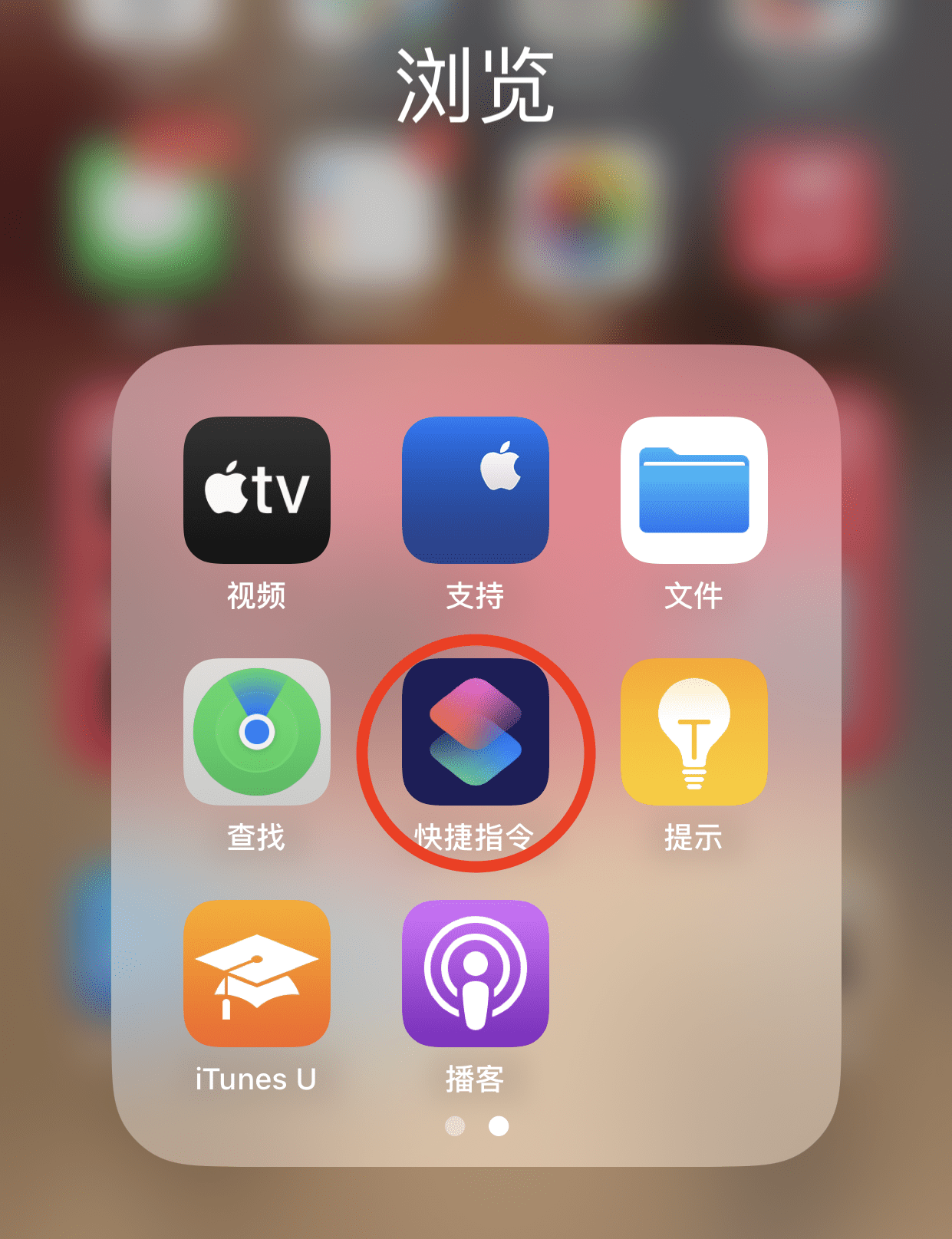
2. Select “Automation”
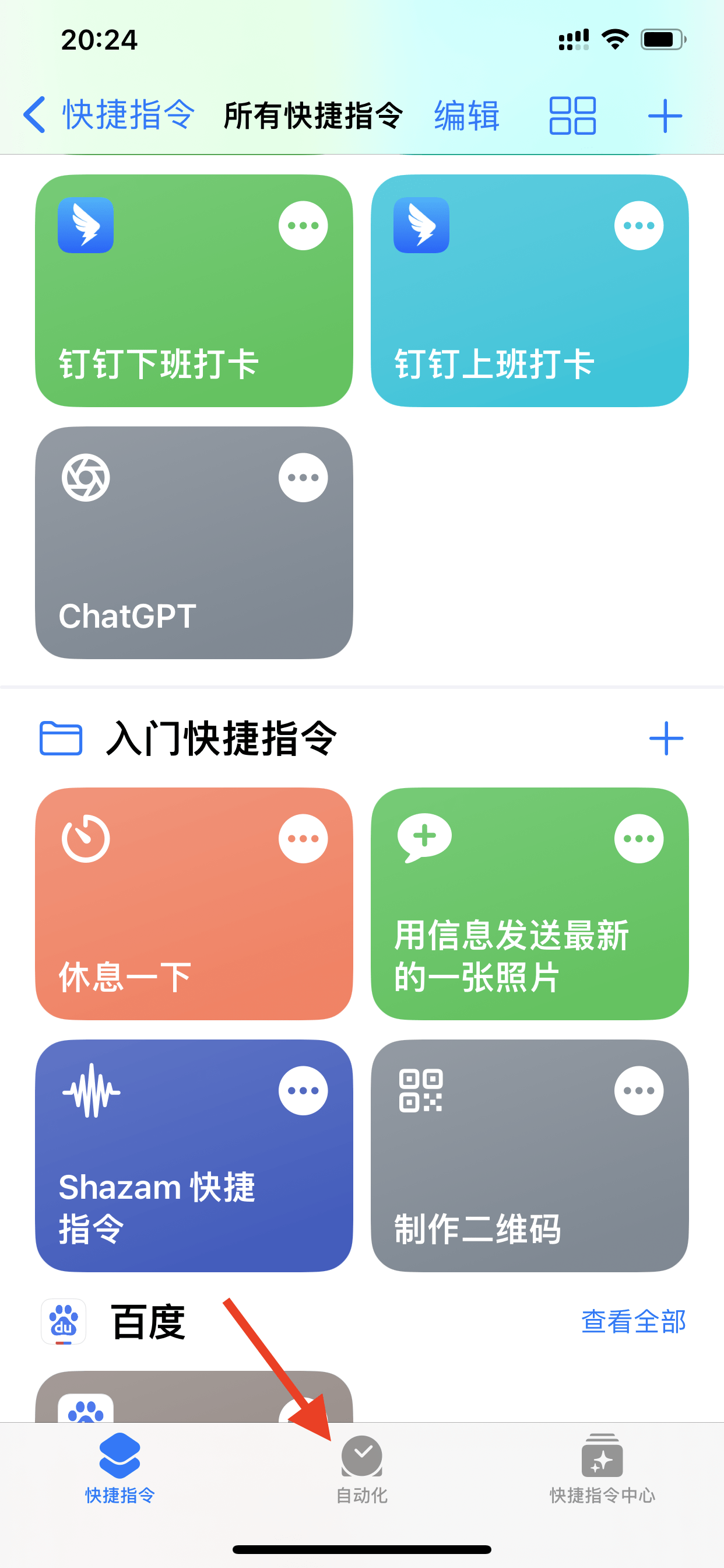
3. Select “Create Personal Automation”
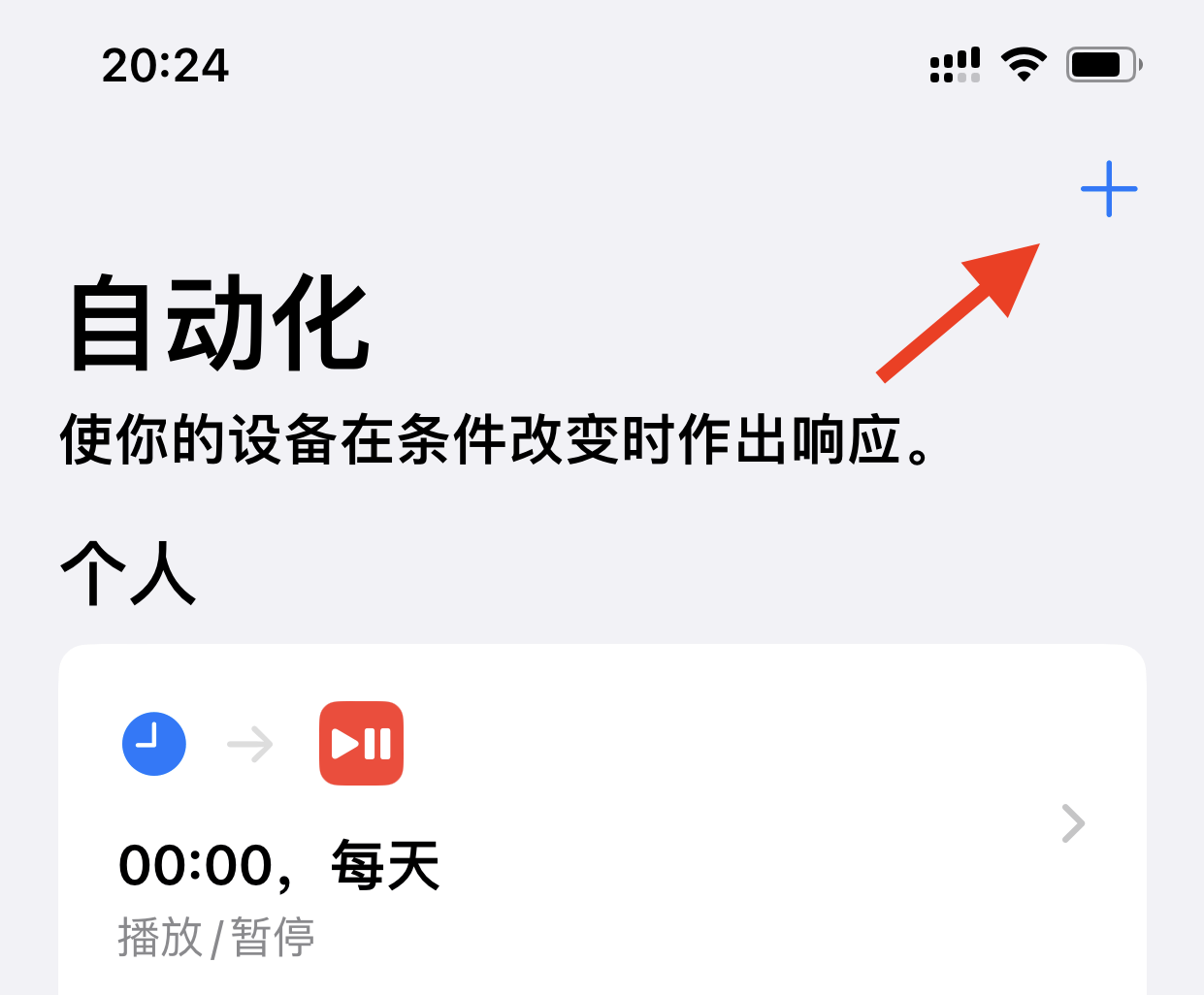
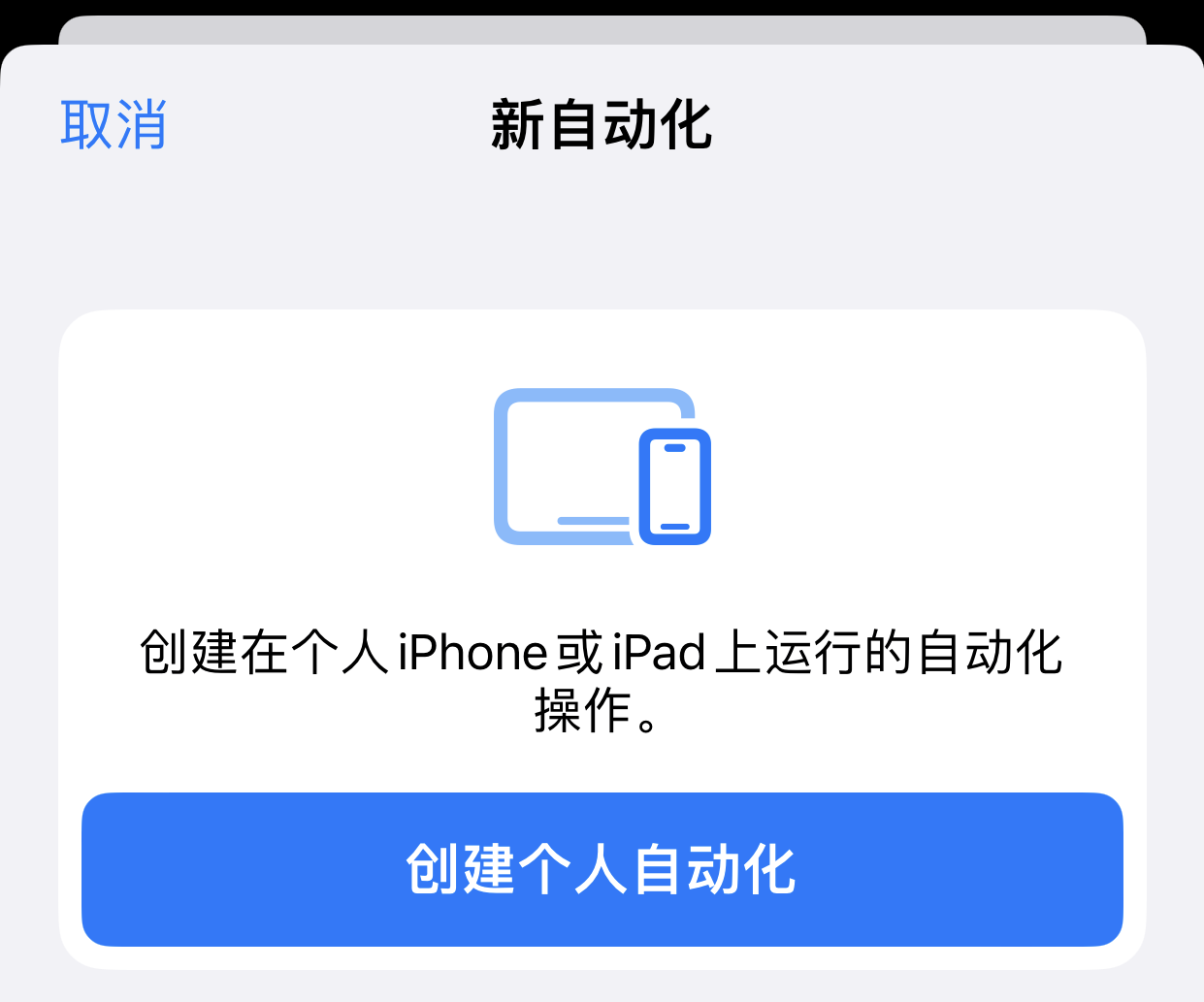
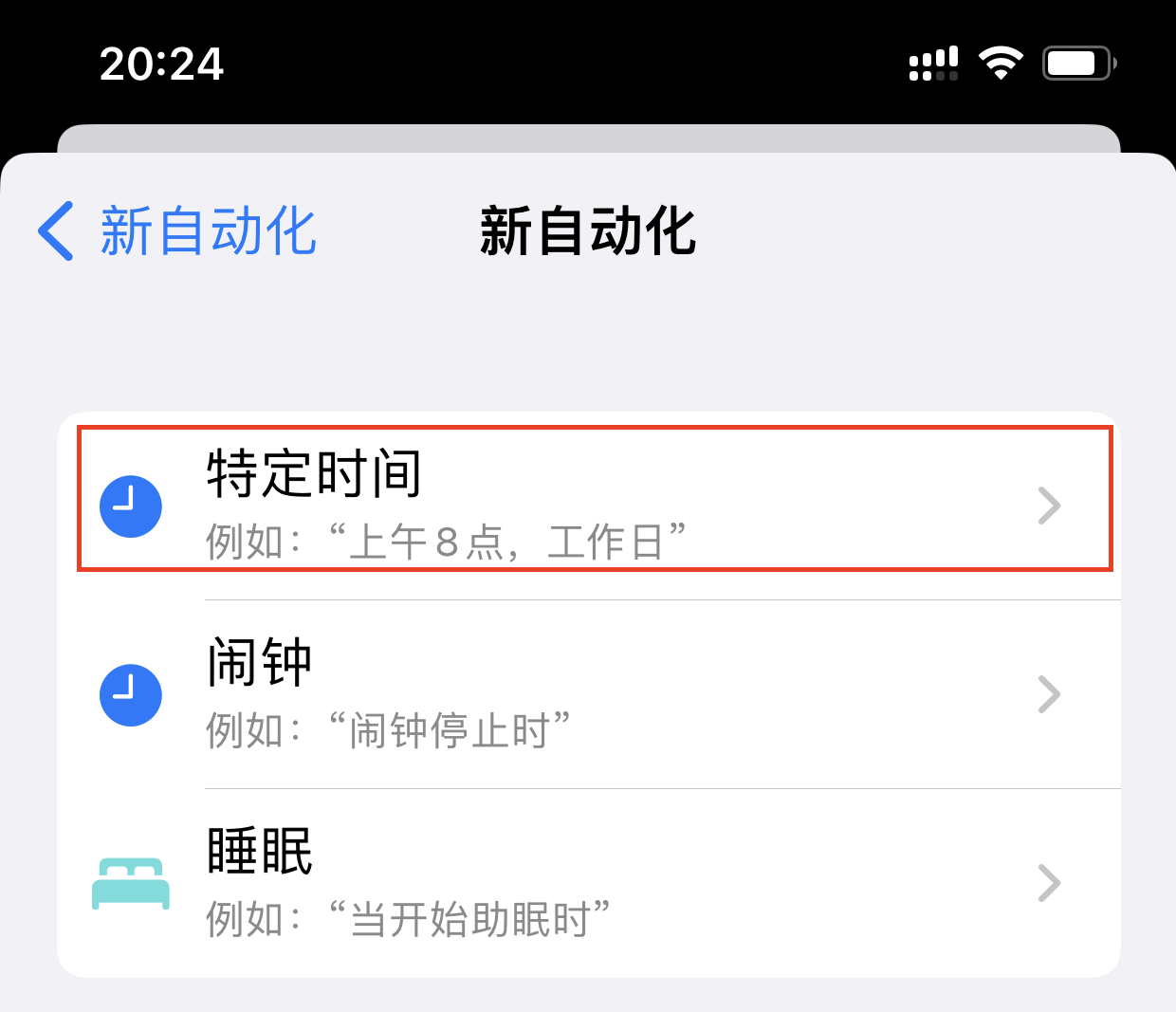
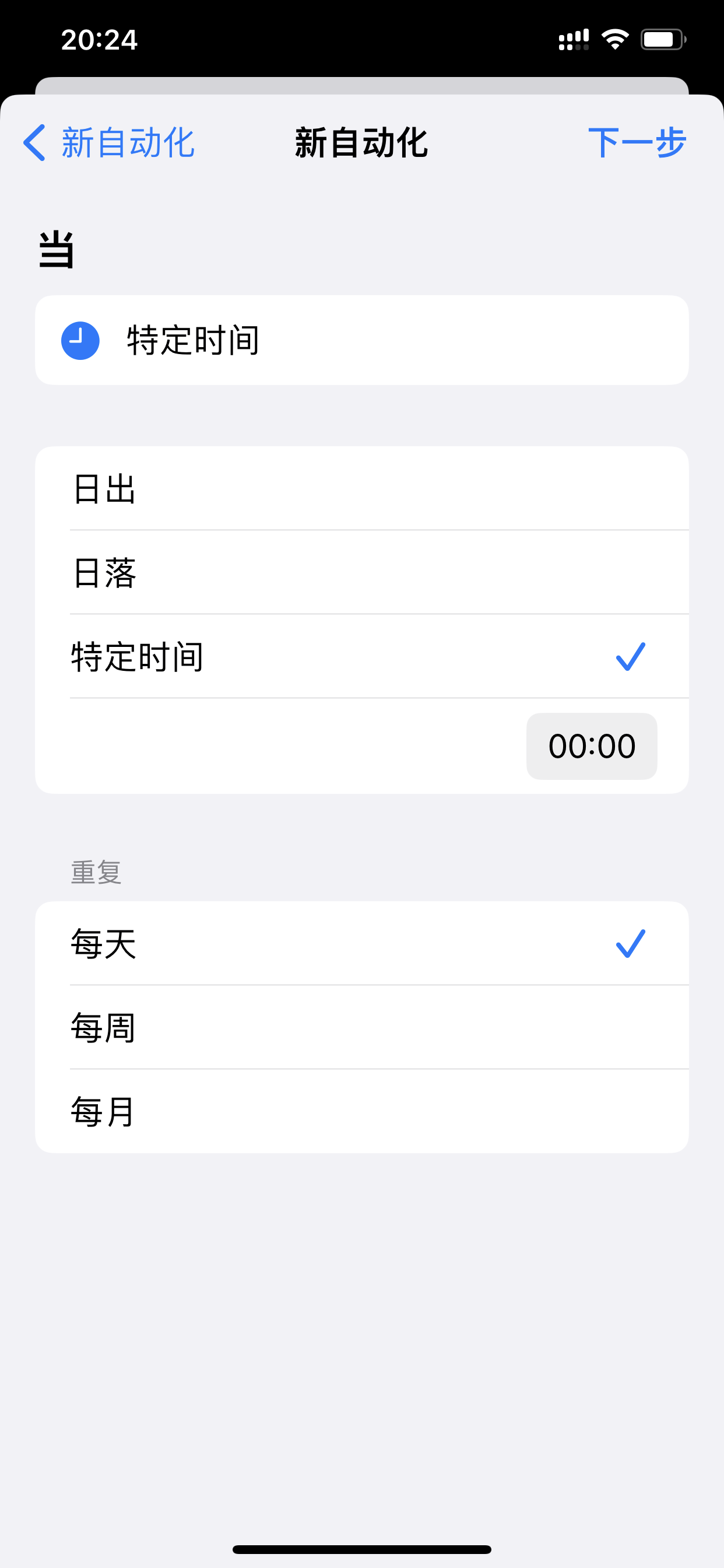
4. Select "Specific time", such as 0 o'clock, you can select "Every day" to repeat, and then click "Next"
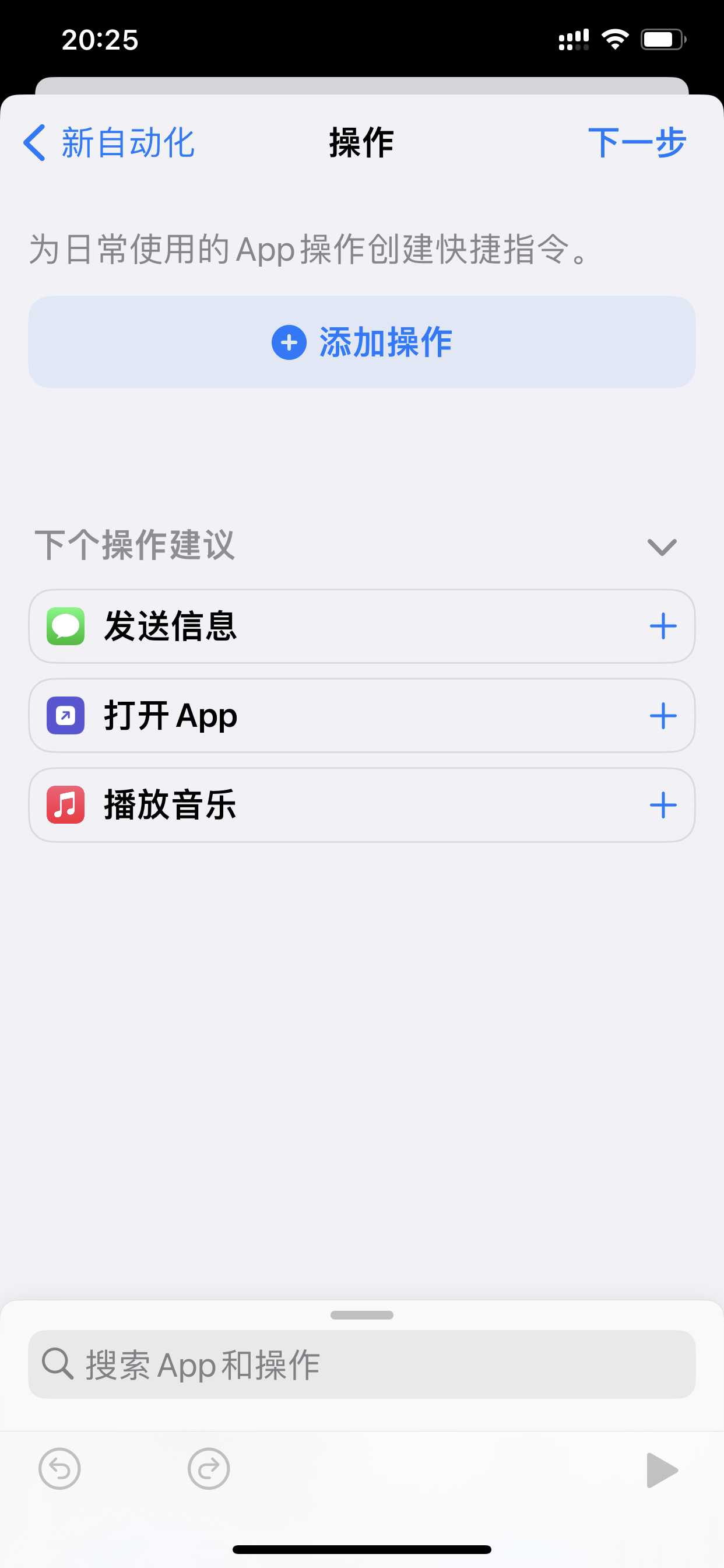
5. Select "Add Action", search for "Pause", and "Media - Play/Pause" will appear.
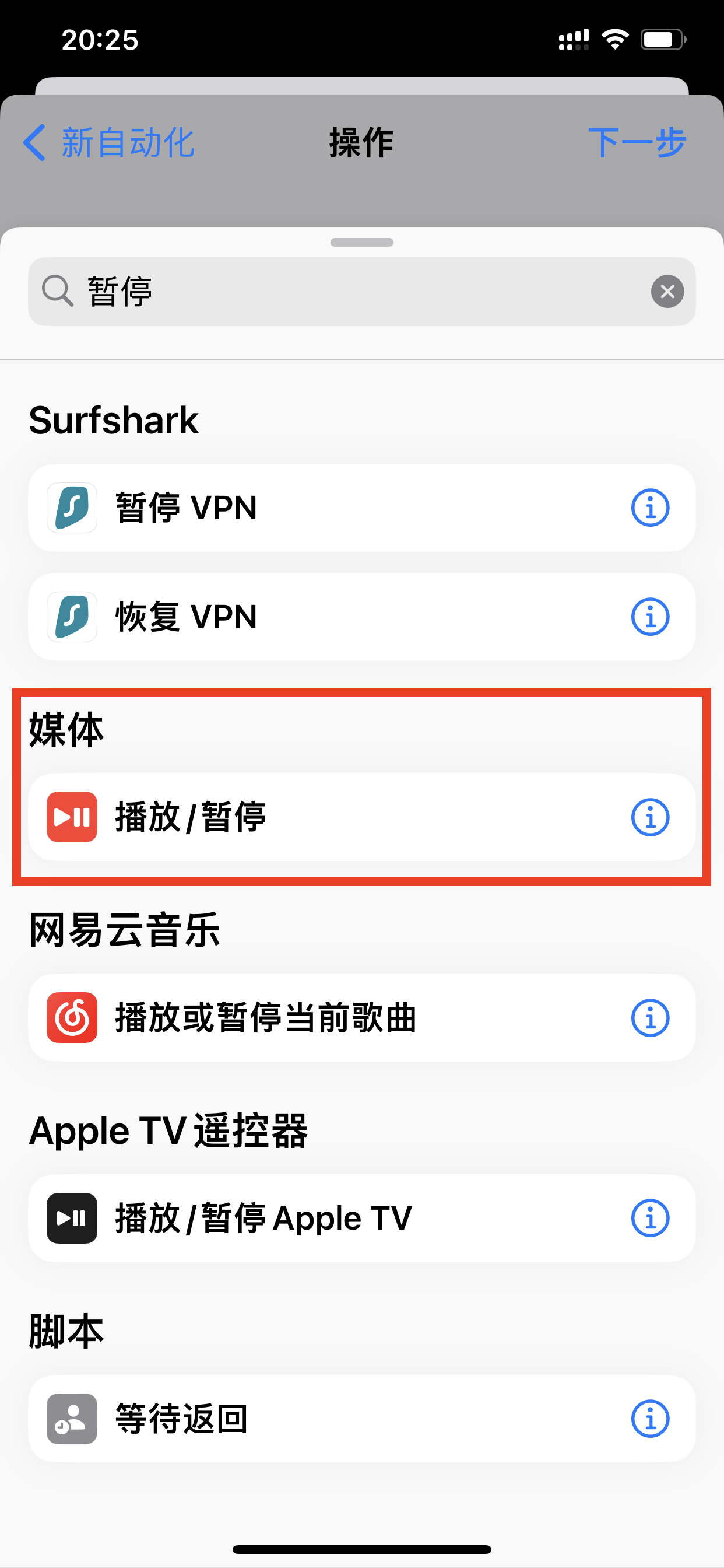
6. Click "Play/Pause", select "Pause", and click "Next"
7. Cancel "Ask before running" and click "Finish"
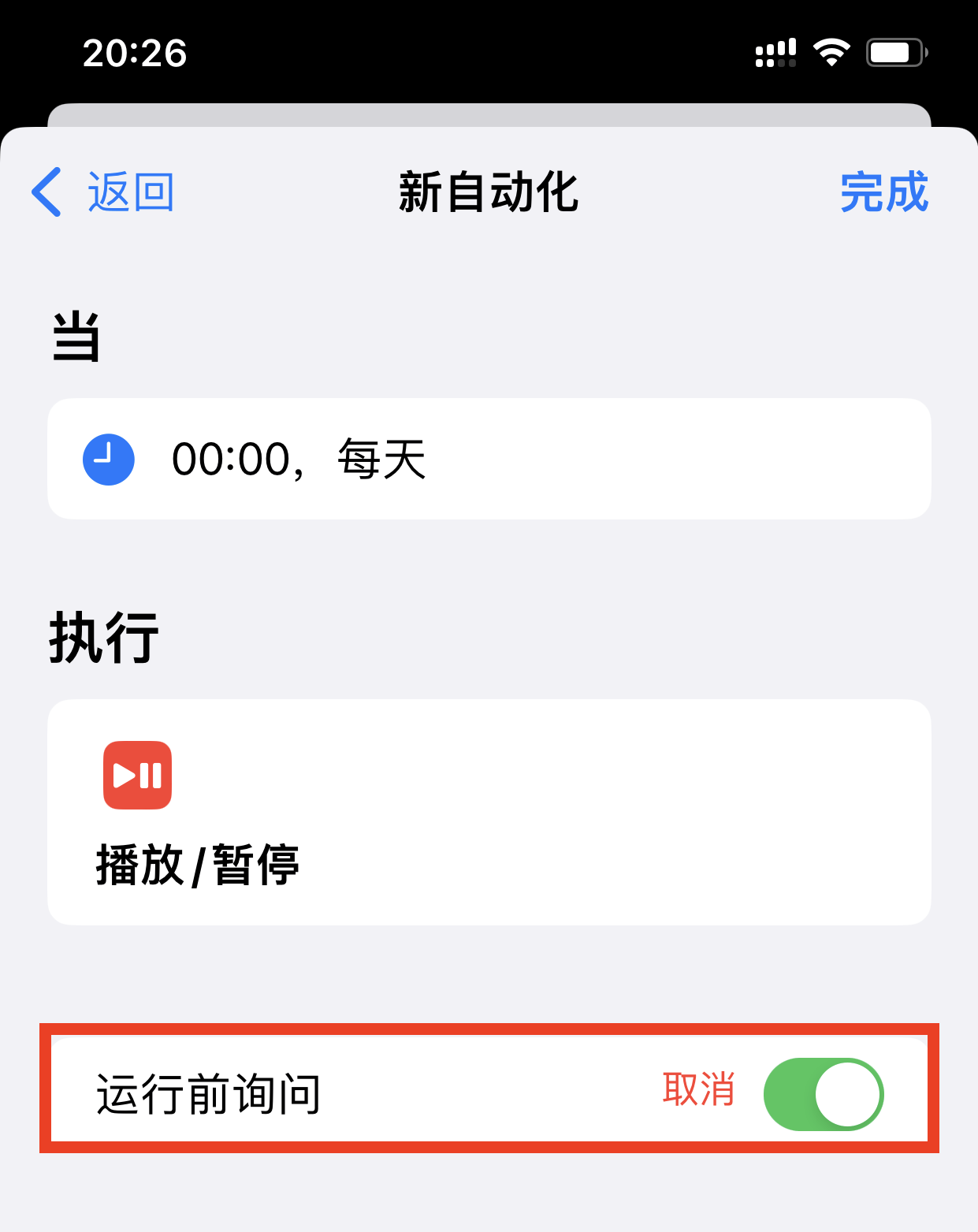
This completes the entire operation.
If you still want to start playing music at a specific time, just follow the previous steps and change "Pause" to "Play".
After finishing this tutorial, I suddenly remembered that this scene is very suitable for my child, who listens to music to fall asleep every day. Sometimes I forget to turn it off.
After setting it up in this way, it is worry-free. Then configure "scheduled playback" and you can even be reminded to sleep. Perfect!
Okay, if you find it useful, just follow my official account "What's Fun".
