Complete Pixel Watch 2 LTE Tutorial:Pixel watch 2 LTE: From purchasing to using, refusing activation failure/solving the problem of eSIM not being able to scan
In the new version of the Pixel Watch app, the method of directly scanning the QR code and writing to the eSIM has been cancelled. This feature can only be enabled if the carrier used by the paired phone is on the list supported by the Pixel Watch.
So, when you buy any generation of Pixel Watch LTE version (cellular version), even if the watch supports writing eSIM phone number, you can't write it whenever you want. There are two solutions:
- The first method is to reinstall the previous version of the Pixel Watch app, that is, version 1.1/1.2. Again, not all versions 1.1 or 1.2 will work. I have demonstrated this method in the previous Pixel Watch tutorial, and the versions that support eSIM scanning are also included in the video description.
- The second method is to put a SIM card of a supported operator in the paired phone, which can be a physical card or an eSIM. The physical card has been verified by enthusiastic netizens, and I verified the eSIM. [Carrier Support List:https://support.google.com/googlepixelwatch/answer/12652073?hl=en】
This tutorial was inspired by this enthusiastic netizen. He contacted me on Telegram to supplement my Pixel Watch tutorial and provided detailed instructions. Here are the screenshots:
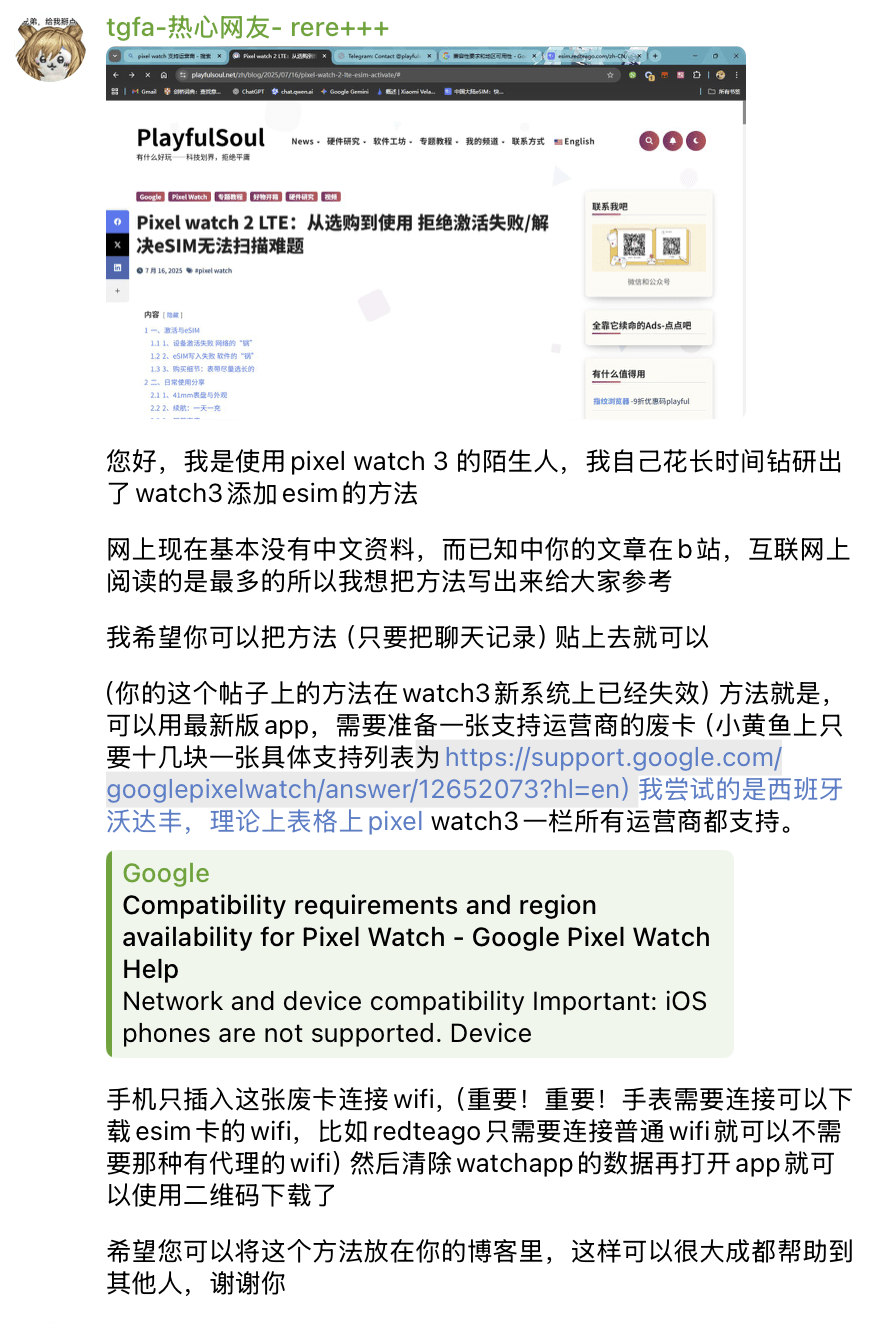
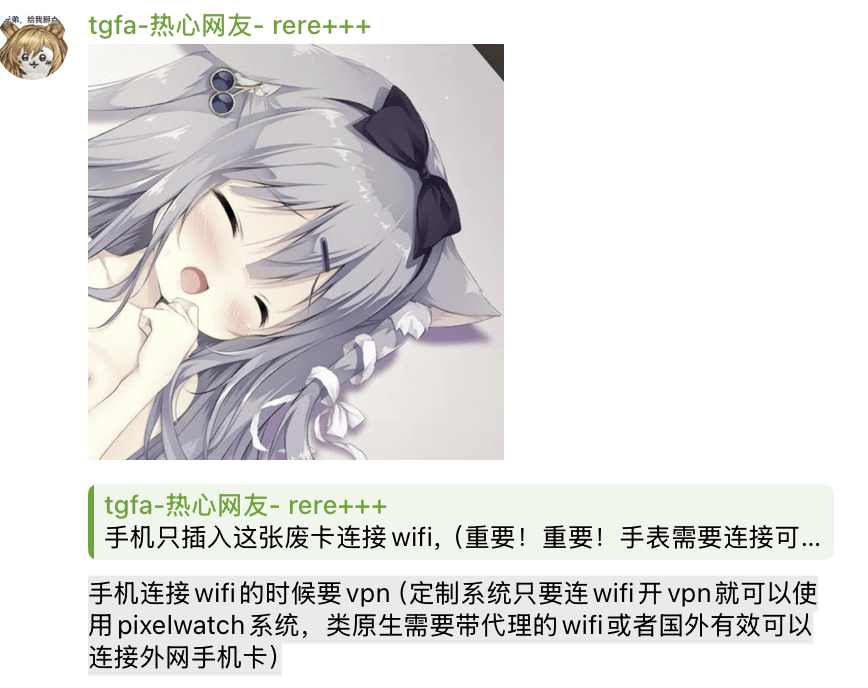
He's already covered the physical SIM card in detail. Let's talk about using an eSIM card on your phone to enable the QR code scanning feature in the latest Pixel Watch app. This method doesn't require purchasing a separate physical SIM card; all you need is a free German Vodafone eSIM number. If you want to keep it long-term, it only costs €0.04 (0.3 RMB) per year.
Judging from the carrier support list, Pixel Watch 1/2/3/4 all support Vodafone Germany. In other words, this solution is very versatile.
The specific operation is as follows:
- Apply for Vodafone Germany eSIM, tutorial here
- The Pixel Watch app automatically adds a QR code to the eSIM option.Watch the video for details
Okay, so those are the two ways to freely write to the eSIM on the Pixel Watch LTE version.
If you don’t want to look for a SIM card, just download the old version of the Pixel Watch app; if you want to use the latest version all the time, just put a suitable SIM card in your phone.
Therefore, you can choose different methods according to the usage of your own equipment. No matter what, you can always find the right one.
This video ends here, I think it is useful
Just follow my channel
You can also collect, like, comment, and forward
That's it, bye-bye~

starz888 [url=https://888starz-eg-egypt4.com/]starz888[/url].
استار888 [url=http://www.eg888starz-bet.com]https://eg888starz-bet.com/[/url]
88starz bet [url=https://888starz-kirish4.com/]https://888starz-kirish4.com/[/url] .
888starz bukmacher [url=http://www.888starz-uz3.com]http://www.888starz-uz3.com[/url] .
888 bet [url=www.888starz-oficialnyj-sajt5.com/]888 bet[/url] .
true fortune casino free spins [url=https://true-fortune-casino-gb.com/]https://true-fortune-casino-gb.com/[/url] .
true fortune casino home [url=www.true-fortunecasino.uk]www.true-fortunecasino.uk[/url] .
true fortune casino no deposit bonus code [url=www.truefortunecasino-freespins.com]true fortune casino no deposit bonus code[/url] .
true fortune casino uk [url=https://truefortunecasino-bonus.com/]true fortune casino uk[/url] .
casino true fortune [url=https://www.truefortune-promo-code.com]casino true fortune[/url] .
are fortune cookies true answers [url=truefortune-50-free-spins.com]are fortune cookies true answers[/url] .
true fortune no deposit bonus code [url=https://true-fortune-casino2.com/]true fortune no deposit bonus code[/url] .
true fortune casino no deposit free chip [url=http://truefortune-50-free-spins.com/]true fortune casino no deposit free chip[/url] .
true fortune home [url=http://true-fortune-casino5.com/]http://true-fortune-casino5.com/[/url] .
true fortune casino [url=https://truefortunecasinos.uk]true fortune casino[/url] .
true fortune casino codes [url=http://www.true-fortune-casino4.com]http://www.true-fortune-casino4.com[/url] .
true fortune slots [url=www.true-fortune-freespins.com/]true fortune slots[/url] .
true fortune ndb codes [url=www.true-fortune-gb.com/]www.true-fortune-gb.com/[/url] .
true fortune review [url=https://true-fortune-bonus.com/]true fortune review[/url] .
what is the true meaning of fortune? [url=true-fortune-casino3.com]what is the true meaning of fortune?[/url] .
how do fortune cookies come true [url=true-fortune-unitedkingdom.com]true-fortune-unitedkingdom.com[/url] .
crazy time 5 euro bonus [url=http://www.crazy-time6.com/slot/]https://crazy-time6.com/slot/[/url]
sisal crazy time italia [url=http://www.crazy-time-italy.it]https://crazy-time-italy.it/[/url]
crazy time bot telegram [url=https://crazy-time-italian.com/]crazy time bot telegram[/url].
crazy time stats [url=http://www.crazy-time8.com]https://crazy-time8.com/[/url]
stats crazy time italia [url=crazy-time-slot.it]https://crazy-time-slot.it/[/url]
crazy time ufficiale [url=https://crazy-time-ita.com]https://crazy-time-ita.com/[/url]
crazy time logo [url=http://www.crazytime-italia-it.com]https://crazytime-italia-it.com/[/url]
crazy time winspark [url=https://www.crazytime-italy-it.com/]https://crazytime-italy-it.com/[/url]
monopoly big baller – results today india live [url=http://www.imonopoly.live/]https://imonopoly.live/[/url]
monopoly live eurobet [url=http://monopolylives.com/]https://monopolylives.com/[/url]
888 stars [url=http://www.colindaylinks.com]https://colindaylinks.com/[/url]
crazy time casino live [url=https://www.crazytimeee.com/]https://crazytimeee.com/[/url]
live nation monopoly [url=http://monopoly-live-bd.com/]https://monopoly-live-bd.com/[/url]
monopoly live today result india [url=http://monopoly-live-bangladesh.com/]https://monopoly-live-bangladesh.com/[/url]
solana casino [url=https://solanagxy.com/]solana casino[/url].
probabilità di vincita crazy time [url=http://www.crazy-timez.com]https://crazy-timez.com/[/url]
watch monopoly live [url=http://www.imonopoly.live]https://imonopoly.live/[/url]
monopoly live results [url=https://monopolylives.com]https://monopolylives.com/[/url]
monopoly live casino game [url=https://www.monopoly-live-bangladesh.com]https://monopoly-live-bangladesh.com/[/url]
crazy time recensioni [url=https://www.crazytimeee.com]https://crazytimeee.com/[/url]
resultat crazy time [url=https://crazy-timez.com/]https://crazy-timez.com/[/url]
best solana casino [url=https://www.solanagxy.com]https://solanagxy.com/[/url]
monopoly live instructions [url=https://monopoly-live-bd.com/]https://monopoly-live-bd.com/[/url]
888starz global [url=http://colindaylinks.com/]https://colindaylinks.com/[/url]
miglior strategia crazy time [url=crazy-time-rome.com]https://crazy-time-rome.com/[/url]
This is exactly the type of clear content I enjoy reading. The unbiased presentation and simple formatting ensure that the most important takeaways are immediately obvious to everyone.
fastest withdrawal online casino canada
The overall flow of this post feels very well paced and clearly organized, because each idea connects naturally with the next one and helps keep the reader engaged without making the discussion feel repetitive or repetitive.
fastest withdrawal online casino canada
The way this post is written makes the discussion feel both relaxed and thoughtful, because the ideas are shared with clarity and respectfully, which helps create a more welcoming atmosphere for readers who want to engage with the topic thoughtfully.
casino en ligne retrait immediat
This post is exactly what I was searching for today. The straightforward, unbiased way you detailed everything makes it a fantastic reference guide that I will definitely keep for later.
casino en ligne avec retrait immediat