In Windows 11, you can significantly improve your computer’s boot speed by preventing certain software from automatically launching at startup. One prime example is the Xbox application that comes pre-installed, which tends to start up when your computer boots. Let’s take a look at how to disable the default startup of applications in Windows 11, using the Xbox program as an illustration, to enhance your boot speed.
To stop the Xbox application from launching at startup, there are two methods to choose from:
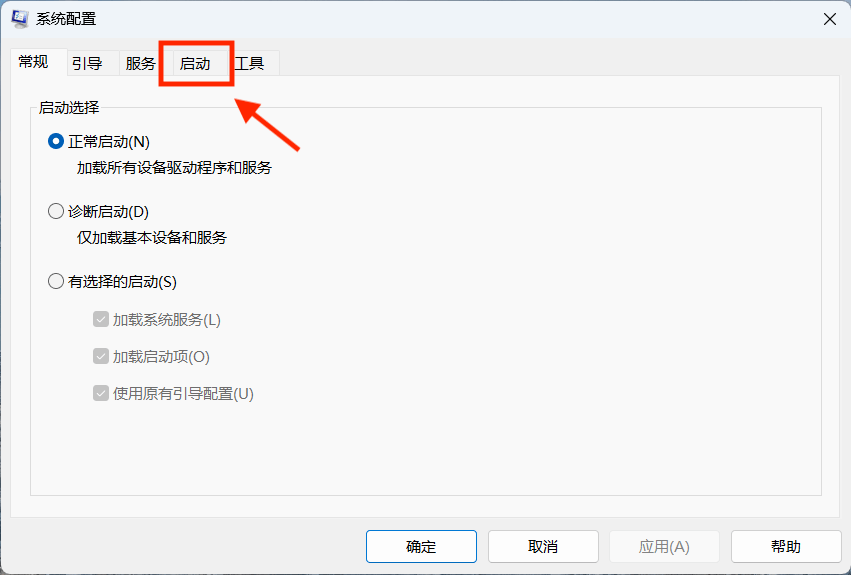
Method 1: Using System Configuration
- Begin by pressing the Windows key and ‘R’ simultaneously to open the Run dialog. Type “msconfig” and press Enter.
- In the “System Configuration” window, switch to the “Startup” tab.
- In the list of startup applications, find “Xbox App Services” and uncheck it.
- Click “Apply” and then “OK.”
Once you’ve applied this change, the Xbox application won’t start automatically when your computer boots. You can still open it manually when needed.
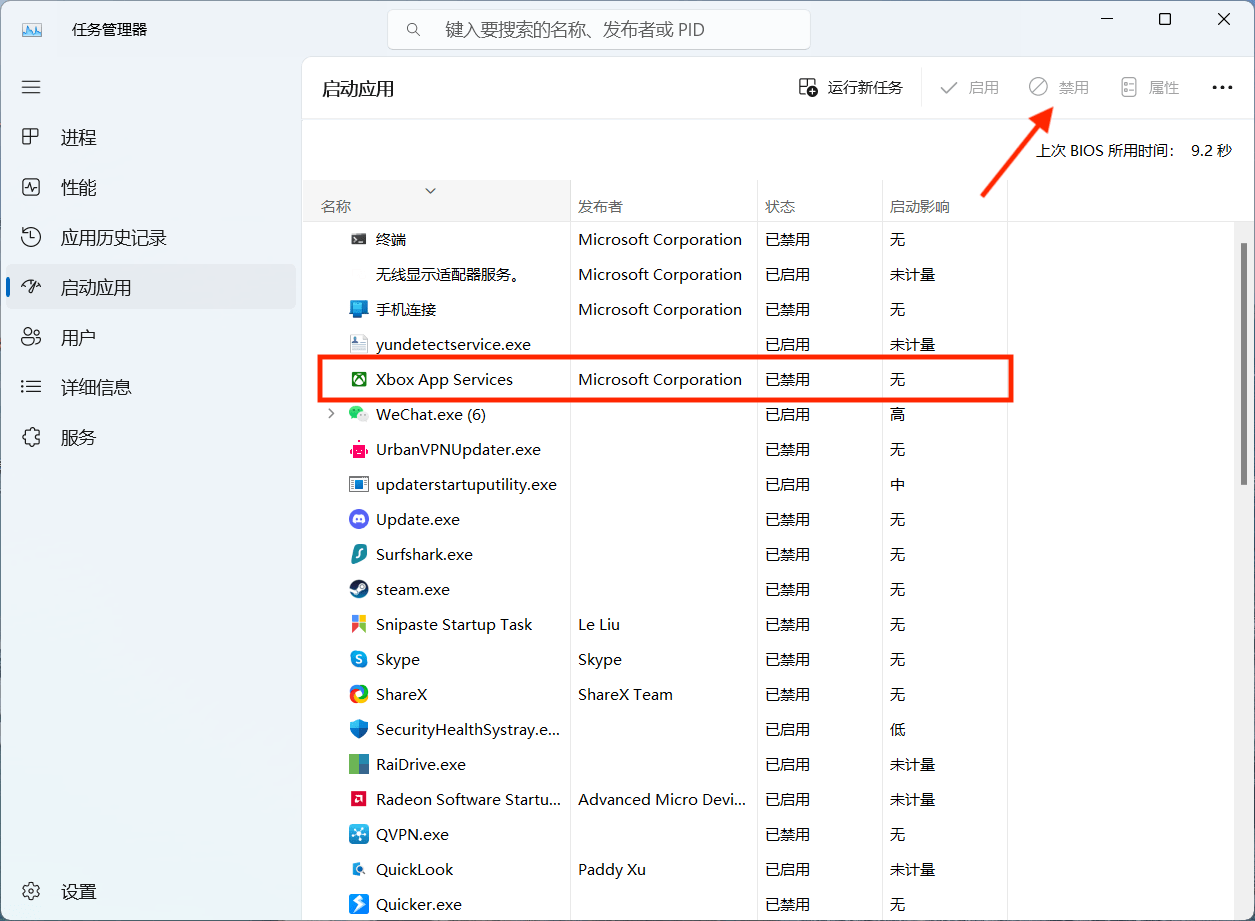
Method 2: Using Task Manager
- Alternatively, you can search for “Task Manager” in the taskbar’s search bar or press “Ctrl + Shift + Esc” simultaneously to open Task Manager.
- Inside Task Manager, navigate to the “Startup” tab.
- Locate “Xbox App Services” in the “Startup” tab, right-click on it.
- From the context menu, select “Disable.”
Both of these methods give you the flexibility to customize your Windows startup, ensuring a smoother and faster boot experience that suits your preferences.
