This is not a tutorial for watching live broadcasts on Xteve and Plex, but a record of some operational confusions I solved.
Because the individual tutorials are easy to find, but the problems in configuration are all in the details. I hope it can be of some help to people like me who are not familiar with this type of software.
If you want to use Plex to watch live TV like me, you must at least do the following things in advance:
- There is a NAS for installing Plex server and Xteve;
- You can watch live TV only if you have a Plex membership, whether it is monthly/annual/free;
- It is best to solve the problem of accessing the external network, because the analysis of many online live broadcast sources will be affected;
1. How to log in to Xteve web client?
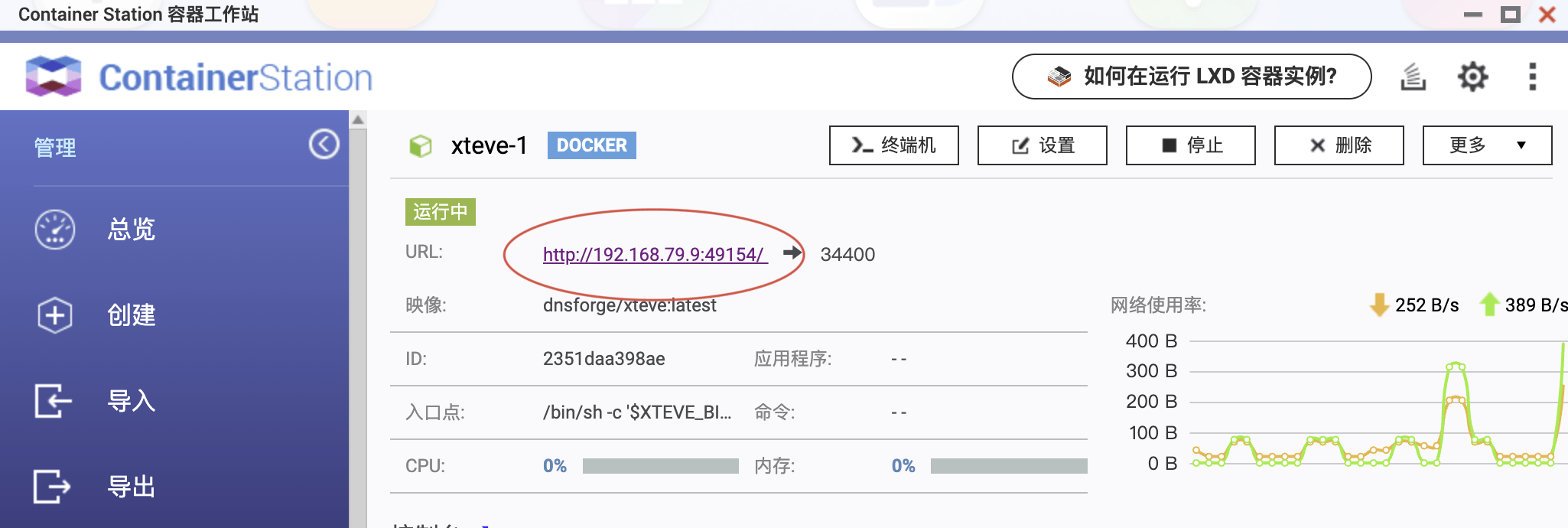
My NAS is QNAP. After installing Xteve (docker) with Container Station, if I want to log in to the web page for configuration, I need to add "/web/" after "http://NAS IP: port".
2. What do the Xteve menus represent?

(1) playlist: This is where the live broadcast source is played. When configuring the live broadcast source, the number of "tuner/streams" can be selected larger, such as "5~10". This represents the number of devices that support live streaming at the same time. In addition, if the number of Plex channels exceeds 480 (or 500?), it cannot be displayed. So you need to use the second menu "filter".
(2) filter: Used to classify channels. If your live broadcast source has grouping parameters, just group them directly. If not, then refer to my previous article and edit the live source manually.
(3)xmltv: This is used to add program information to the channel. You need to fill in an EPG URL. Usually this is used:
http://epg.51zmt.top:8000/e.xml
However, many live broadcast source channels are not covered by the above-mentioned URLs. Therefore, I have attached more than ten EPG URLs to the network disk file. See the end of the article for how to obtain them. You can choose them as needed.
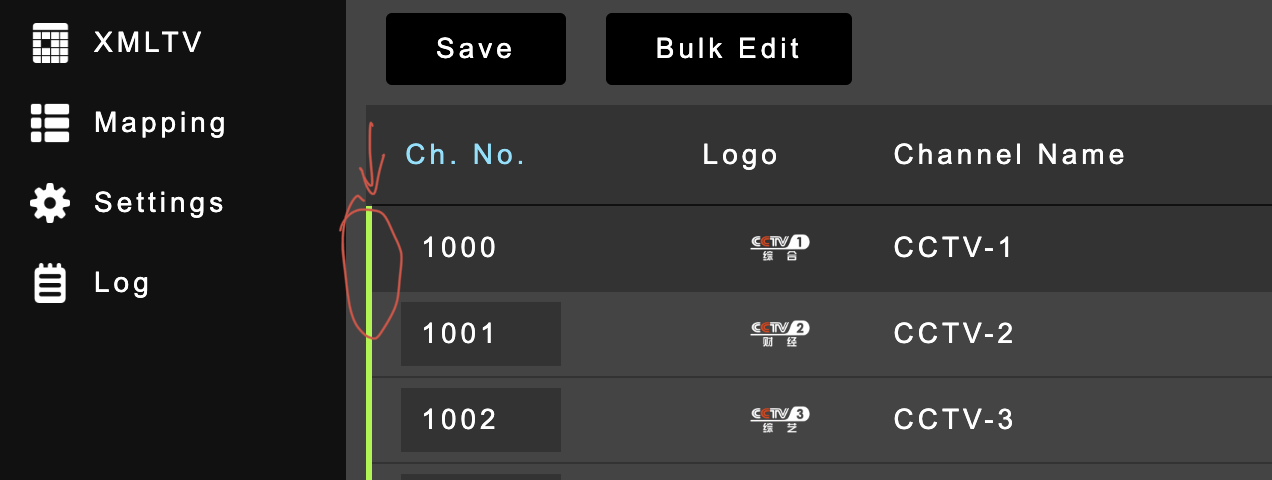
(4)mapping: This is used to match channel playlist and program information xmltv. There are two statuses in front of the channel: red/green. If it is red, it cannot be searched in the plex live broadcast.
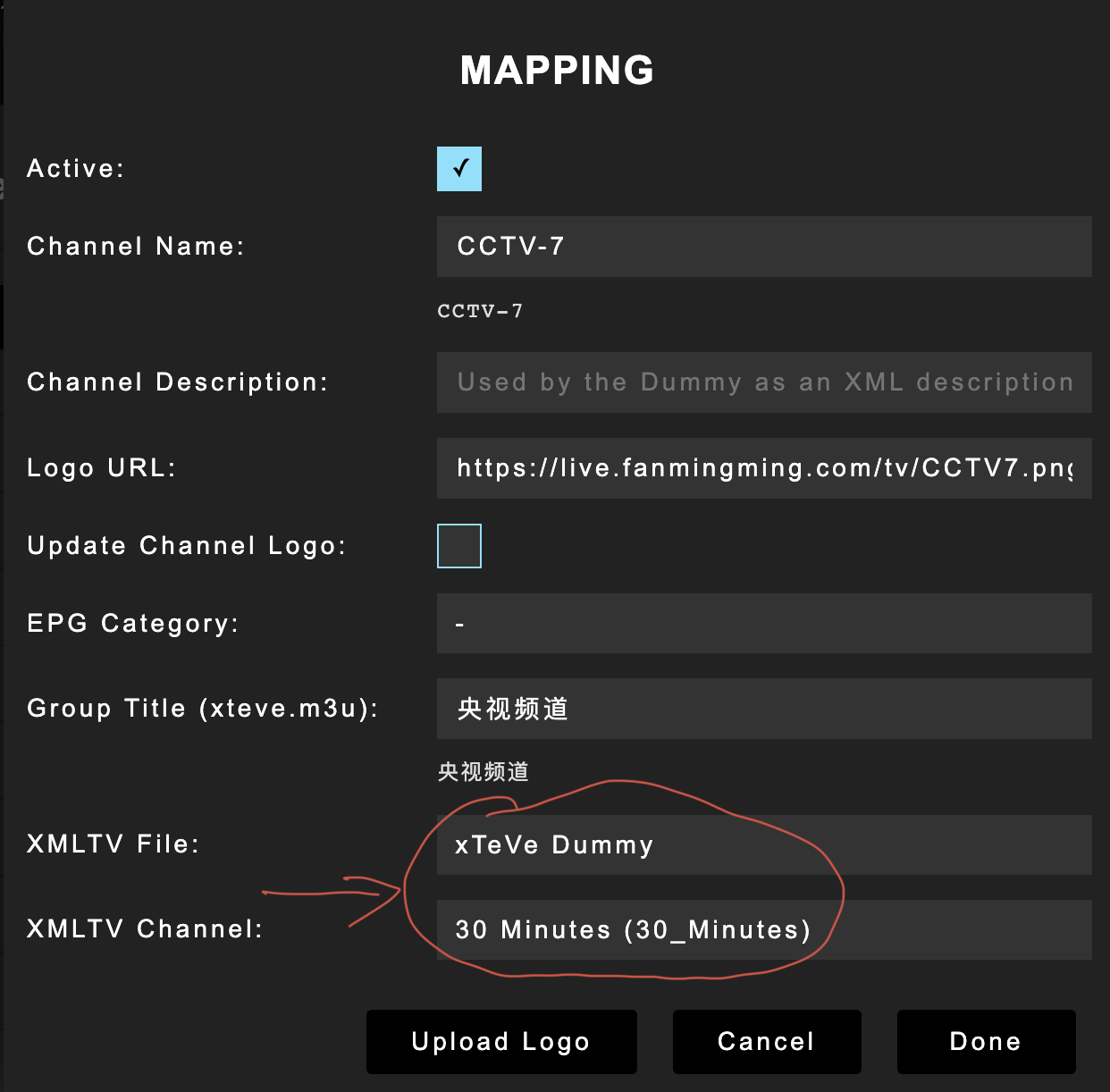
If you have many channels or no EPG, you can do batch operations and select "Xteve Dummy" for any length of time. This is the virtual program. After doing this, it won't look good on the plex front end.
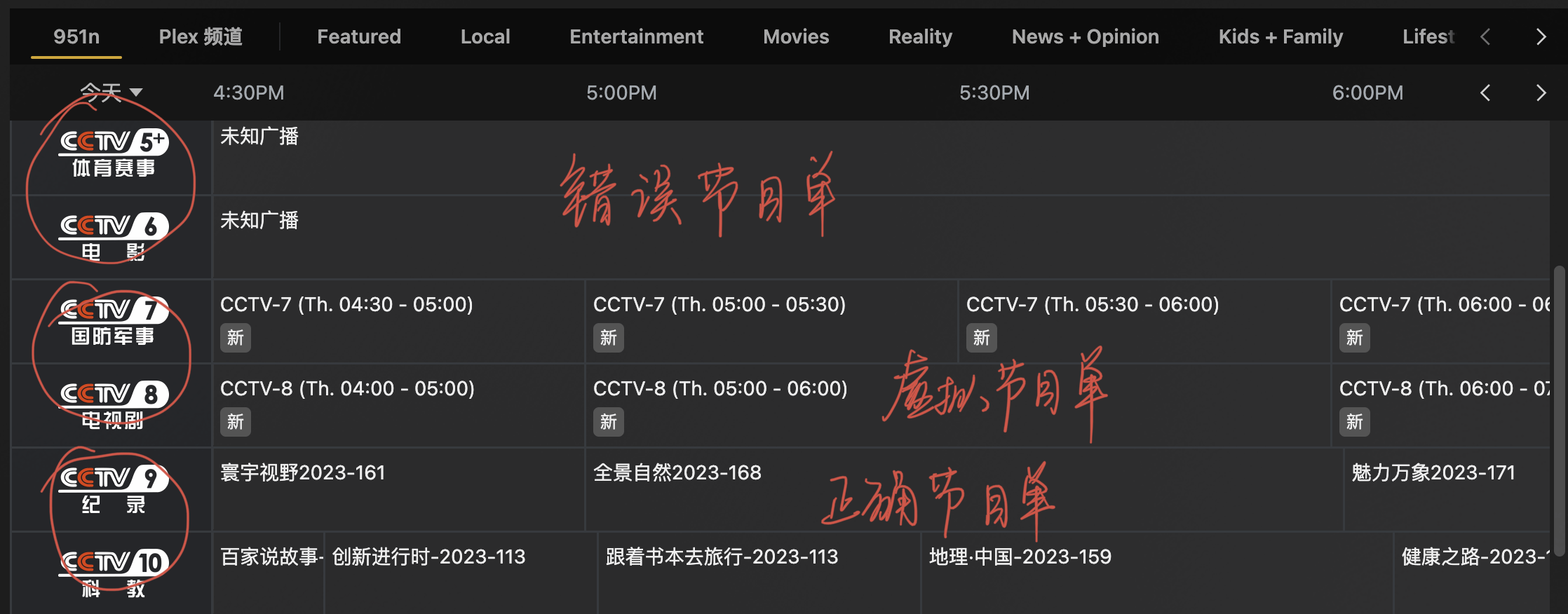
[Comparison of three program lists]
Seeing this, unfamiliar friends may understand: unlike using a player to watch live broadcasts, a high-quality live broadcast source must not only have a correct name and playback address, low playback delay, and high-definition images, but also other features such as channel classification, program information, etc. It also affects the viewing experience.
Therefore, if you are not sure, friends who edit the live broadcast source can read my last article:
"Stuttering, failure, disorder... Easily modify the live TV source by yourself"
(5) setting
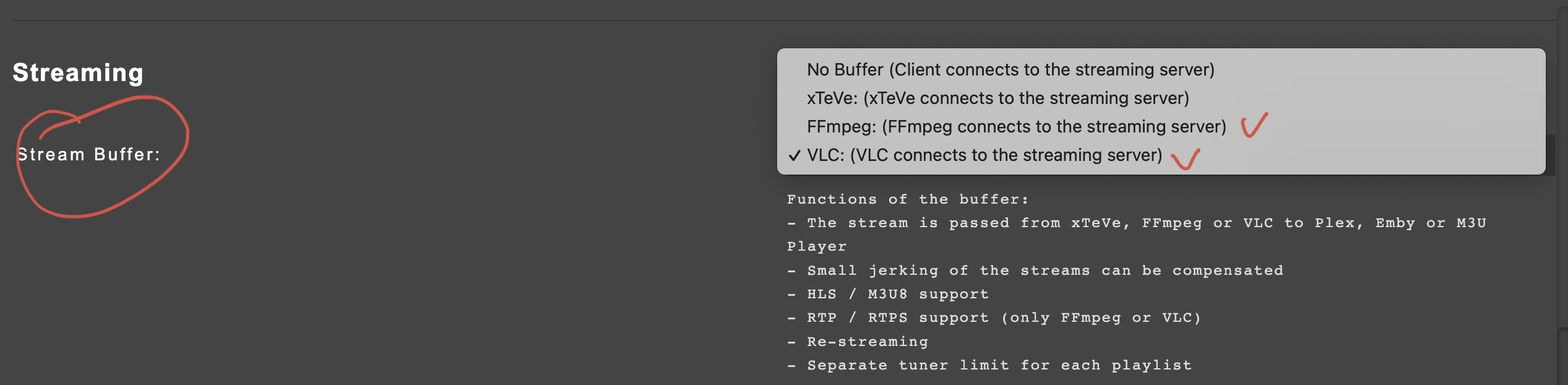
In the system settings, you still need to mention the selection of stream buffer. The default is no buffer. Remember to change it to ffmpeg or VLC, otherwise you will not be able to watch the live broadcast.
In addition, you usually encounter the following situation:
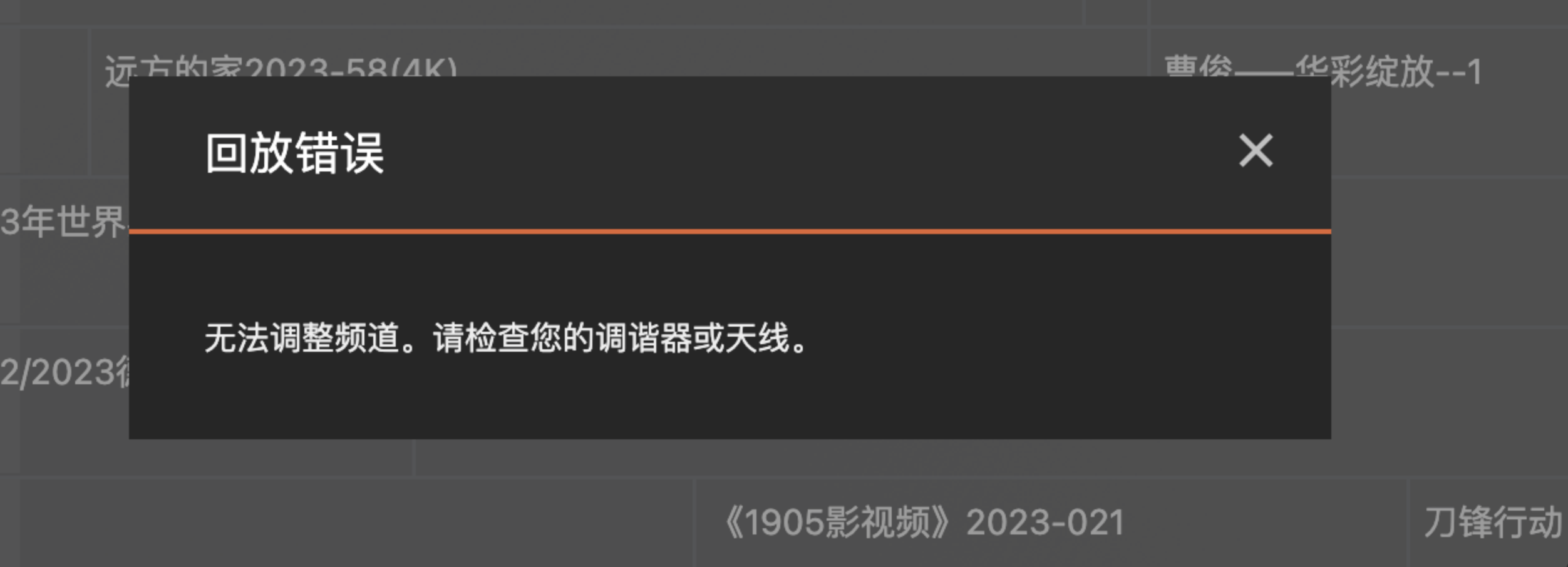
When Plex displays "Playback error! Unable to adjust channel, please check your tuner or antenna", the first thing you should do is check if there is any misoperation in the stream buffer. If not, most of the time there is a problem with the live broadcast source itself or the URL parsing.
Because of this error, I searched forums and consulted Plex customer service, but could not find an answer. For this reason, I once reinstalled Xteve and Plex, which I couldn't bear to look back on.
As for the configuration of Plex media server, it is relatively simple. As long as Xteve is configured properly, it is just a process, so I won’t go into details.
If you want to get all the resources mentioned in the article, please reply in the backend of the What’s Fun official account (not the comment area): TV Live
I originally planned to write about TVbox, but after searching around, I found many tutorials, so I decided to leave it at that.
Okay, if you see this and find it useful, just follow it.
related information
[Soft Recommendation] Learn how to download CCTV videos no longer garbled
